
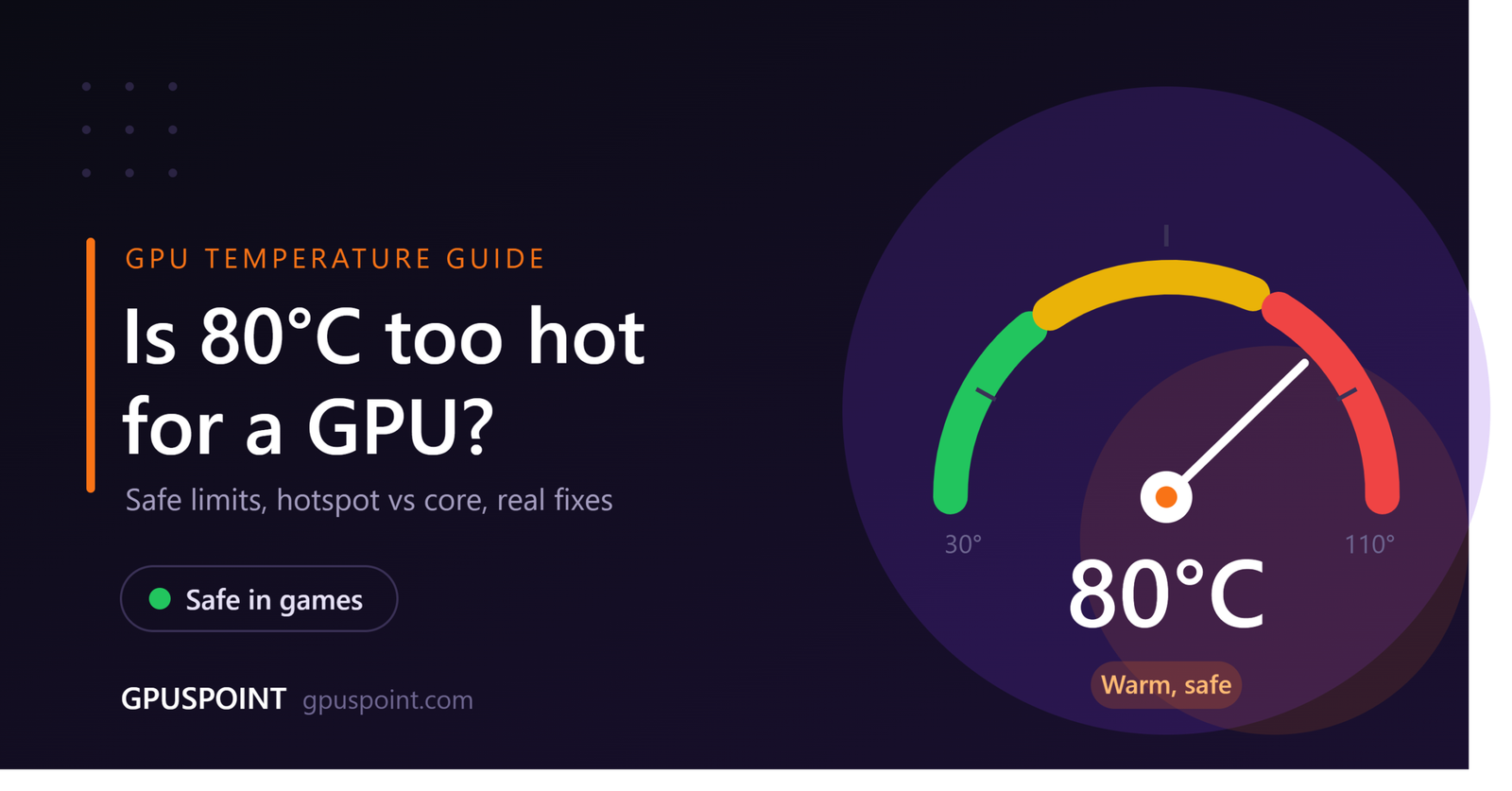
No, 80°C isn’t too hot for a GPU while you’re gaming. Most modern graphics cards are built to run up to somewhere around 85–90°C before they start slowing themselves down. 80°C is on the warm side, but it’s well inside the safe zone.
That said, the number on its own doesn’t tell the whole story. 80°C during a long session of Cyberpunk is fine. 80°C while you’re sitting on the desktop doing nothing is not. Here’s how to tell the difference, what’s causing it, and what you can do if you’d like your card to run cooler.
Table of Contents
What 80°C Actually Means for Your GPU
Your GPU has a built-in limit. When it gets close to that limit, it drops its clock speed to cool down. This is called thermal throttling, and it’s a safety feature, not a sign that something’s broken.
For most cards, that limit sits somewhere between the mid-80s and low-90s on the core sensor. So at 80°C, you’ve still got some room left. Your card isn’t throttling yet, it isn’t getting damaged, and it’ll keep running at full speed.
What 80°C does tell you is that your cooling is working hard. If your card normally sits at 70°C and has started hitting 80°C, that’s worth paying attention to. Something changed, whether it’s dust, a hotter room, or a fan that isn’t spinning the way it used to.
Why Is My GPU Hitting 80°C?
If you’re seeing 80°C and wondering why, it usually comes down to one of a few things. Most of the time, it’s not one big problem but a few small ones adding up.
The game is pushing your card hard. Demanding games at high settings, especially with ray tracing turned on, keep your GPU at close to 100% usage the whole time. More work means more power, and more power means more heat. That’s completely normal.
Your card’s cooler is on the smaller side. Budget and compact cards often have two fans and a thinner heatsink. They’re designed to run warmer. A small card hitting 80°C isn’t a defect, it’s just how it was built.
The fans are tuned for quiet, not for cooling. Many cards keep fan speeds low to stay quiet, and they let temperatures rise a bit to make that work. Your card might be happily sitting at 80°C on purpose, because the manufacturer decided low noise mattered more than a few degrees.
Hot air has nowhere to go. If your case has poor airflow, the GPU ends up breathing in its own exhaust. The temperature keeps climbing until it hits a balance point, which is often right around 80°C.
Your room is warm. This one gets overlooked a lot. If your room is 35°C in summer, your GPU starts from a much higher baseline than it would at 22°C. A card that runs at 72°C in winter can easily hit 80°C or more in summer without anything being wrong.
Dust has built up. Over time, dust collects on the fan blades and between the heatsink fins. It acts like a blanket and traps heat. If your PC hasn’t been cleaned in a year or more, this is a likely cause.
80°C Core vs 80°C Hotspot: Big Difference
This is where a lot of people get confused, so it’s worth slowing down here.
Your GPU reports more than one temperature. The two you’ll see most often are:
- GPU temperature (core): an average reading across the chip. This is the number Task Manager shows you.
- Hotspot (junction) temperature: the single hottest point on the chip. It always reads higher than the core.
A gap of 10–20°C between the two is normal. So if your core says 70°C, a hotspot of 85°C is nothing unusual.
Now flip it around. If your core is at 80°C, your hotspot is probably somewhere around 90–100°C. That’s still within spec for most cards, because hotspot limits are set much higher, often around 105–110°C.
If your hotspot is at 80°C, your card is running cool. You’ve got nothing to worry about at all.
So before you panic about a number, check which sensor you’re looking at. Our guide on how to check GPU temp shows where to find both readings.
Is 80°C Safe for RTX 50, RTX 40 and RX 9000 Cards?
Yes, for all of them. 80°C on the core is safe across current NVIDIA and AMD cards.
NVIDIA cards usually have a listed maximum GPU temperature somewhere around 88–93°C, depending on the model. AMD cards mostly report the hotspot (junction) temperature, and their limit for that is usually around 110°C.
If you want the exact limit for your card, check the official spec page for your model, or see our GPU temperature chart by model, where we’ve listed the maximum and normal ranges for each card.
One thing to keep in mind: different brands cool the same chip differently. A big triple-fan card and a small dual-fan card can run the same GPU 10°C apart. So if your friend’s card runs cooler than yours, that doesn’t automatically mean yours has a problem.
Is 80°C Too Hot for a Laptop GPU?
Not really. Laptops run hotter than desktops, and that’s just how they’re built. There’s less space, smaller fans, and the CPU and GPU usually share one cooling system.
For a gaming laptop, 80–87°C under load is pretty common. Plenty of laptops are tuned to sit right around there on purpose.
Where it starts to matter is comfort and noise. A laptop at 80°C will have loud fans and a warm keyboard. If that bugs you, a cooling pad, raising the back of the laptop, or switching to a quieter power profile can knock a few degrees off.
Is 80°C Okay for Rendering, AI and Long Workloads?
Gaming isn’t the only thing that heats up a GPU. If you use your card for video rendering, 3D work or running AI models locally, the situation is a little different.
Games usually have moments where the load drops, like menus, loading screens or quieter scenes. Rendering and AI workloads don’t. They often keep your GPU at full load for hours without a break. So your card may reach a higher temperature and stay there much longer.
80°C is still safe for these workloads. Your card is designed to handle it. But since the heat is constant, a few things matter more than they do for gaming.
First, keep an eye on your memory temperature, not just the core. Cards with fast GDDR6X or GDDR7 memory can get their VRAM very hot during long AI or rendering jobs, sometimes hotter than the core itself. Tools like HWiNFO show this as “memory junction temperature.” Most memory is fine below the high 90s, but if it’s sitting above 100°C for long periods, it’s worth improving your cooling.
Second, think about undervolting. For long jobs, a small drop in voltage can cut temperatures and power use quite a bit, while the job takes only slightly longer to finish. If you run AI models often, this is one of the best things you can do for your card. If you’re choosing a card for this kind of work, our guide to the best GPU for local LLMs covers which ones handle long loads well.
When Should You Actually Worry About 80°C?
80°C is fine most of the time. But in a few situations, it’s a sign that something needs fixing:
Your GPU hits 80°C at idle. If you’re not gaming or rendering, your card should usually sit somewhere between 30°C and 50°C. Seeing 80°C on the desktop usually means a background app is using your GPU, or the fans aren’t spinning. Check our guide on why your GPU usage is high.
Your temps climbed over time. If your card used to sit at 70°C in the same game and now hits 80°C, dust or dried-out thermal paste is the usual cause. This tends to show up after a year or two.
You’re seeing other problems at the same time. Crashes, stuttering, flickering or strange colored dots on screen, along with high temps, point to a real issue. Our guide on GPU artifacting can help you narrow it down.
Your fans aren’t spinning under load. Many cards stop their fans when they’re cool. That’s normal. But if the fans stay off while you’re gaming, something’s wrong. Here’s what to do when your GPU fans aren’t spinning.
Your hotspot is pushing past 105°C. At that point, you’re near the limit, even if the core number looks okay.
If none of these apply, 80°C is just your GPU doing its job.
What Happens If Your GPU Goes Past 80°C?
It helps to know what your card does as temperatures keep rising, so you’re not caught off guard.
From 80°C to about 85°C, nothing changes. Your fans will spin faster and get louder, but your performance stays the same.
Around the mid-to-high 80s, many cards start trimming their boost clocks a little. You might lose a few frames per second. Most people won’t notice this in normal play.
As you get close to the maximum, usually around 90°C on the core for many cards, throttling gets stronger. Clock speeds drop more, and you might start to feel it as lower FPS or small stutters.
If temperatures keep climbing past the limit, the card takes more drastic action. It may crash the game, cause the driver to reset, or shut down your PC to protect itself. This is rare, and it usually only happens when something is clearly wrong, like a failed fan or a heatsink that’s come loose.
The key point is that your GPU protects itself. It’s very hard to damage a modern card through heat alone during normal use, because it’ll slow down or shut off long before it gets to that point. That’s why 80°C is nothing to fear. It’s just a number on the way up, with a lot of safety built in above it.
How to Lower Your GPU Temp From 80°C
You don’t have to lower it. But if you’d like a quieter, cooler card, these are the changes that make the biggest difference, roughly in order of how easy they are.
1. Clean out the dust. Turn off the PC, take the side panel off, and blow out the GPU fans and heatsink with compressed air. Hold the fans still while you do this so they don’t overspin. On an older build, this alone can drop temps noticeably.
2. Improve your case airflow. Make sure you have at least one fan pulling cool air in from the front and one pushing hot air out the back or top. A GPU sitting in a box with no airflow will always run hot.
3. Check your room. Your GPU can only cool itself down to the temperature of the air around it. In a hot room during summer, every component runs hotter. Moving the PC off the carpet or away from a wall helps more than you’d think.
4. Set a custom fan curve. Tools like MSI Afterburner let you make your fans spin faster at lower temperatures. You trade a bit of noise for cooler temps.
5. Cap your frame rate. If your game runs at 200 FPS on a 144Hz monitor, your GPU is doing extra work you can’t even see. Capping FPS near your refresh rate cuts heat and power.
6. Undervolt your GPU. This is the best fix, in my opinion. You run the card at a slightly lower voltage, and in many cases you keep almost the same performance while dropping temps and noise. It takes a bit of testing, but it’s worth it.
7. Replace the thermal paste. If your card is a few years old and nothing else helps, the paste between the chip and heatsink may have dried out. This is more involved and can affect your warranty, so try the other steps first.
FAQs
Is 80°C bad for a GPU long term?
Not really. Running at 80°C while gaming won’t meaningfully shorten your card’s life. What wears hardware down faster is constant very high heat, close to the throttle limit, for years. Here’s more on how long GPUs last.
Does 80°C reduce gaming performance?
No. Your card only slows down when it gets close to its limit, which is usually above 85°C. At 80°C, you’re getting full performance.
Is 80°C hotspot temperature good?
Yes, that’s a cool hotspot reading. Hotspot temperatures are always higher than core temps, and most cards are fine up to around 105–110°C.
Why is my GPU hotter in summer?
Because your GPU can’t cool itself below the temperature of the air in your room. When the room gets hotter, your card starts from a higher point, so the same game can run 5–10°C warmer in summer than in winter. Better airflow, a cooler spot for your PC, or a light undervolt can help a lot during the hottest months.
Should I be worried if my GPU is 80°C while streaming or watching videos?
Yes, that’s higher than it should be for such a light task. Check for background apps using the GPU, make sure your fans are spinning, and see if your drivers are up to date. Our guide on how to update GPU drivers walks you through it.
What is a normal GPU temperature?
Usually 30–50°C at idle and 65–85°C while gaming. We’ve covered the full range for different workloads in our guide to normal GPU temp.
The Bottom Line
80°C is a normal, safe temperature for a GPU under load. Your card isn’t throttling, it isn’t getting damaged, and you don’t need to do anything about it.
Just keep an eye on the context. If you see 80°C at idle, if your temps keep creeping up over time, or if your hotspot is close to 110°C, that’s when it’s time to clean, tweak or troubleshoot. If you want to know where your card’s real limit is, check our guide on how hot is too hot for a GPU.
