
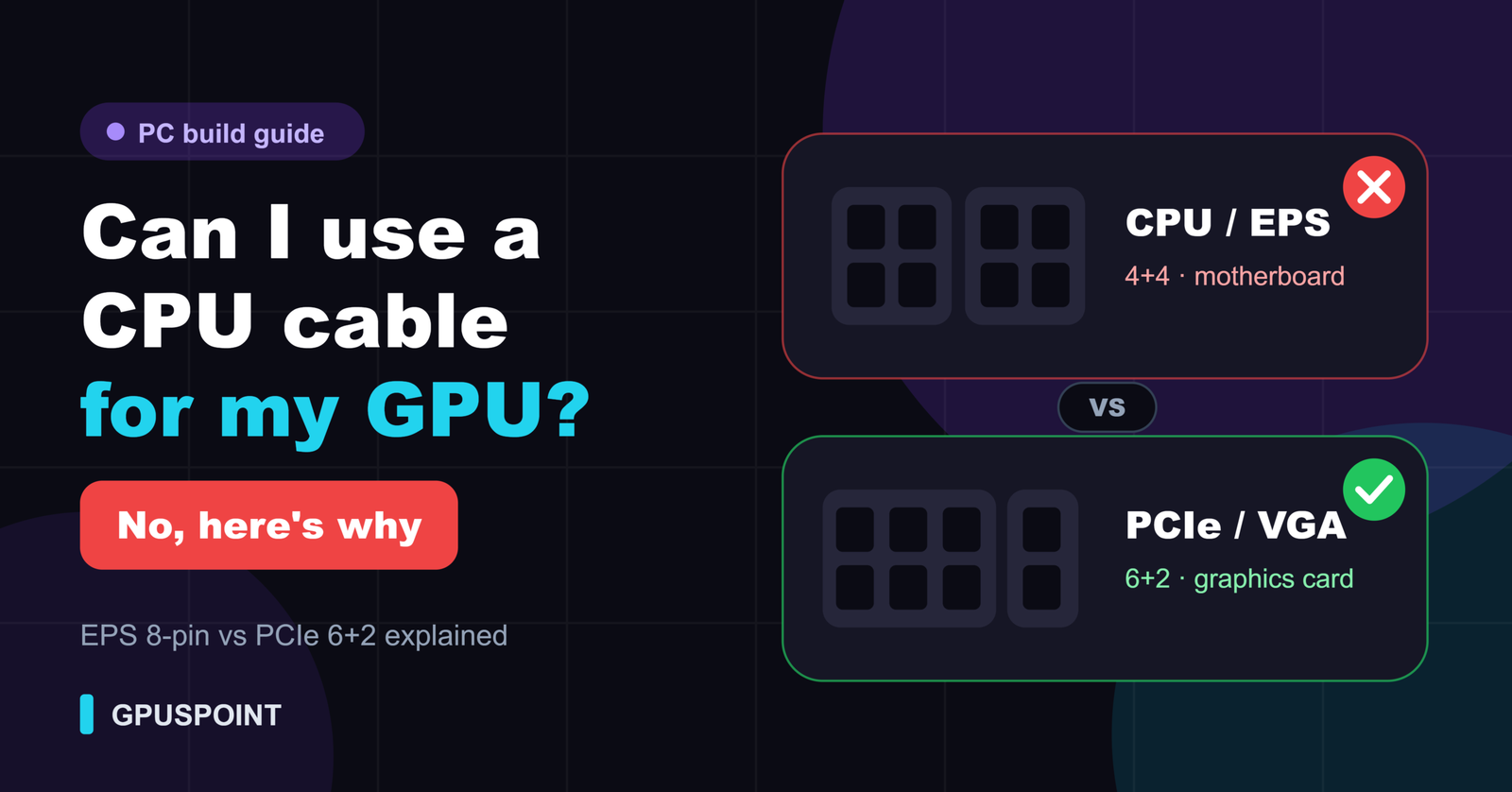
No. You can’t use a CPU (EPS) power cable for your GPU. Both are 8-pin, and they look almost the same at a glance, but their pins are wired the other way around. Where the CPU cable carries 12 volts, the GPU expects ground. If you force one into the other, you risk a short circuit that can kill your power supply, your graphics card, or both. Always use a cable marked PCIe or VGA for your graphics card.
That’s the short answer. The rest of this guide explains why the two cables are different, how to tell them apart in seconds, what to do if you’ve already plugged in the wrong one, and the one rare case where a CPU-style connector does belong on a GPU.
Table of Contents
Why the confusion happens
Almost everyone who builds a PC for the first time stops at this exact moment. You pull a handful of black cables out of the PSU box, and two of them end in 8-pin plugs. One goes to the top-left of the motherboard. The other goes to the graphics card. Same pin count, same color, similar shape. It feels like they should be interchangeable.
The confusion gets worse with modular power supplies. On many units, the ports on the PSU side for CPU and PCIe cables sit right next to each other. Some brands even use the same socket shape for both. So builders assume the other end must be the same too. It isn’t.
CPU (EPS) vs PCIe cable: what’s actually different
1. The pin layout is reversed
This is the part that matters most.
An EPS12V 8-pin (CPU) connector has four 12V wires and four ground wires. All the 12V pins sit in one row and all the grounds sit in the other.
A PCIe 8-pin (GPU) connector has three 12V wires, three ground wires and two “sense” wires. The 12V pins sit on the side where the EPS connector has its grounds.
Put simply, if you could force an EPS plug into a GPU socket, 12V would land on the card’s ground pins. That’s a dead short. A good PSU will shut itself off the moment it detects it. A cheaper one may not react in time, and that’s when components get damaged.
| Feature | CPU / EPS 8-pin | GPU / PCIe 8-pin |
|---|---|---|
| Where it goes | Motherboard, near the CPU socket | Graphics card |
| 12V wires | 4 | 3 |
| Ground wires | 4 | 3 (+2 sense) |
| Typical split | 4+4 | 6+2 |
| Common label | CPU, EPS, ATX12V | PCIe, VGA, PCI-E |
| Rated power (spec) | Higher, designed for the CPU’s VRM | 150W per 8-pin |
2. The keying is different
Look closely at the plastic of each pin hole. Some are square and some have rounded corners. These shapes, called keys, are there on purpose. The square and rounded holes on an EPS connector sit in a different order from those on a PCIe connector. That’s why the wrong cable won’t slide in with normal pressure.
If you find yourself pushing hard, wiggling, or “just getting it in,” stop. The connector is telling you it’s the wrong one.
3. The split is different
A CPU cable usually splits into 4+4. You can separate it into two 4-pin halves for older boards. A GPU cable usually splits into 6+2: a 6-pin block with a detachable 2-pin piece, so it works with both 6-pin and 8-pin cards.
This is a quick visual check. If one half of the plug has four pins, you’re holding a CPU cable. If it’s six pins plus two, it’s for the GPU.
4. The label usually tells you
Most decent PSUs print the cable’s purpose on the connector or on a sticker on the wire. Look for:
- CPU, EPS, or ATX12V: motherboard only
- PCIe, PCI-E, or VGA: graphics card only
If there’s no label at all, use the 4+4 vs 6+2 check above, or match the cable against your PSU manual.
How to identify the right cable in 30 seconds
- Check the label on the plug or near it.
- Check the split. 4+4 means CPU, 6+2 means GPU.
- Check the motherboard. The CPU socket on the board is usually labeled “CPU_PWR1” or “ATX12V.” Whatever fits there is the CPU cable.
- Dry-fit gently. The right cable clicks into the GPU with light pressure and the latch catches on the tab. The wrong one stops halfway.
- On a modular PSU, check the port labels on the PSU itself. They’re usually marked “CPU” and “PCIe” or “VGA.”
What happens if you plug a CPU cable into a GPU?
It depends on how far it went in and how good your power supply is. Here are the realistic outcomes, from best to worst.
Nothing happens. Most of the time the cable simply won’t seat, so you never manage to connect it. That’s the keying doing its job.
The PC won’t turn on, or shuts off instantly. If the plug did go in and you press the power button, a quality PSU sees the short and triggers its short-circuit protection (SCP). The fans twitch and everything goes dark. Unplug the PSU from the wall, fix the cable, wait a minute, and try again. In most cases nothing is damaged.
A pop, a burning smell, or smoke. On a weaker PSU without solid protection, the short can burn traces, fuses, or MOSFETs on the graphics card, or blow components inside the PSU. If this happens, don’t keep testing. Disconnect everything.
Hidden damage. Sometimes the system seems fine after you correct the mistake, but the card later shows artifacts, crashes, or won’t boot. If you suspect a short happened, run a few checks. Our guide on how to check GPU health walks you through them, and GPU artifacting covers the warning signs.
Already plugged it in? Do this
- Turn the PC off and switch off the PSU at the rear, then unplug it from the wall.
- Press the power button once to drain leftover charge.
- Remove the wrong cable and inspect both connectors for melted plastic or black marks.
- Connect the correct PCIe cable and make sure the latch clicks.
- Power on and watch for normal boot, fans spinning and a display.
- If there’s no display, try reseating the card. See how to reseat a GPU.
- If you smelled burning or see damage, stop and contact the manufacturer for warranty support.
The reverse mistake: GPU cable in the CPU socket
This works the other way too. A PCIe 6+2 cable shouldn’t go into the motherboard’s CPU power socket. The 12V and ground positions are swapped in the same dangerous way. Some builders manage to push the 6-pin part of a PCIe cable into a 4-pin CPU socket because the shapes partly match. Don’t. It can damage the motherboard’s VRM and the CPU.
Modular PSU: where most mix-ups really happen
With a modular power supply, the riskiest moment isn’t at the GPU end. It’s at the PSU end.
Some manufacturers design a single socket type on the PSU that accepts both CPU and PCIe cables. These sockets are often labeled “CPU/PCIe.” That’s fine, because each cable is wired correctly for its own job. The problem starts when people do one of these:
- Mixing cables between PSU brands, or even between two models from the same brand. Modular cables have no universal pinout on the PSU side. A cable from one unit can fry another. Only use the cables that came with your PSU.
- Using a third-party cable without checking that it’s made for your exact PSU model.
- Losing track of which cable is which after a cable-management session.
Rule of thumb: keep the original cables, keep the bag they came in, and never borrow a modular cable from another power supply.
What to do if you don’t have enough PCIe cables
This is usually the real reason people reach for the CPU cable. The card needs two or three 8-pin connections and the PSU box seems to have only one.
Here’s what to do, in order of preference.
1. Look again. Many PSUs ship with a single cable that has two 6+2 plugs on it (a daisy-chain or “pigtail”). Some extra cables also hide in the accessory bag.
2. Use separate cables where possible. For high-power cards, running one cable per 8-pin socket spreads the load better than one daisy-chained cable. For mid-range cards, a pigtail is usually fine if your PSU maker allows it.
3. Buy the official cable from your PSU maker. Most brands sell spare PCIe cables for their units.
4. Upgrade the PSU. If your PSU simply doesn’t have enough PCIe outputs, it probably doesn’t have the wattage for the card either. Check what PSU you need for your GPU.
What not to do:
- Don’t use a CPU cable.
- Don’t rely on cheap Molex-to-PCIe or SATA-to-PCIe adapters for a modern card. SATA power connectors were never meant to carry that much current, and these adapters are a known cause of melted plugs.
- Don’t cut and rewire cables yourself unless you truly know what you’re doing.
What about 12VHPWR and 12V-2×6 cards?
Newer high-end cards, such as many RTX 40 and RTX 50 models, use a single 16-pin connector (12VHPWR, now revised as 12V-2×6) instead of several 8-pins. The same rule applies. That connector should be powered by:
- a native 16-pin cable from an ATX 3.0/3.1 PSU, or
- the adapter that came with the card, which takes several PCIe 8-pins.
You never feed that adapter with CPU/EPS cables. Also push the 16-pin plug in all the way. A partly seated connector is the most common reason these plugs overheat.
Does every GPU need a power cable?
No. Many entry-level cards draw 75W or less and take all their power from the PCIe slot on the motherboard. If your card has no power socket on its edge, it doesn’t need a cable. If it does have a socket, it needs a PCIe cable. You can’t skip it, and you can’t use the CPU cable instead.
| Power source | Max power |
|---|---|
| PCIe x16 slot | 75W |
| 6-pin PCIe | 75W |
| 8-pin PCIe | 150W |
| 12V-2×6 (16-pin) | Up to 600W |
The one exception: data center GPUs
There’s a small group of cards that really do use a CPU-style EPS 8-pin connector: certain workstation and data center GPUs, such as some NVIDIA Tesla and server-class cards. They were designed for server chassis that route EPS power to the cards.
If you put one of these in a normal desktop, you still don’t plug in your motherboard’s CPU cable. You use a dedicated adapter that converts two PCIe 8-pin outputs into one EPS 8-pin, made specifically for that card. Check the card’s documentation first.
For every regular gaming card from NVIDIA GeForce, AMD Radeon and Intel Arc, the answer stays the same: PCIe cables only.
Common myths
“An 8-pin is an 8-pin.” No. The pin count matches but the wiring doesn’t.
“If it fits, it’s fine.” Connectors can sometimes be forced. Fitting under force isn’t the same as being compatible.
“My PSU has protection, so I can test it.” Protection circuits are a safety net, not a guarantee. Don’t rely on them on purpose.
“The CPU cable has more power, so it’s better for the GPU.” The power rating doesn’t matter when the polarity is wrong.
FAQs
Can I use a CPU 4+4 pin for a GPU?
No. Neither the full 8-pin nor the split 4-pin halves should go into a graphics card.
Can I use a CPU cable as a PCIe cable if I rewire it?
Technically, someone with the right tools and pinout knowledge could re-pin a connector. For a normal build it isn’t worth the risk. Buy the right cable.
Can a CPU cable damage my GPU?
Yes, if it’s forced in and powered on. Usually the PSU shuts down first, but damage is possible, especially with low-quality units.
My PSU only has CPU cables. What now?
Then it most likely wasn’t built for a graphics card that needs extra power. Get a PSU with proper PCIe outputs and enough wattage.
Are CPU and PCIe ports on a modular PSU the same?
On some models the PSU-side sockets are shared, but the cables themselves are wired differently. Always connect each cable to the matching device.
How do I know a cable is PCIe?
Look for “PCIe” or “VGA” on the plug and a 6+2 split.
Final word
The CPU cable and the GPU cable are two different tools that happen to look alike. Take ten seconds to check the label and the 4+4 or 6+2 split before you plug anything in. If it doesn’t click in easily, it’s the wrong cable. And if you’re short on PCIe connectors, the fix is the right cable or a better PSU, never a workaround.
