
Last updated:
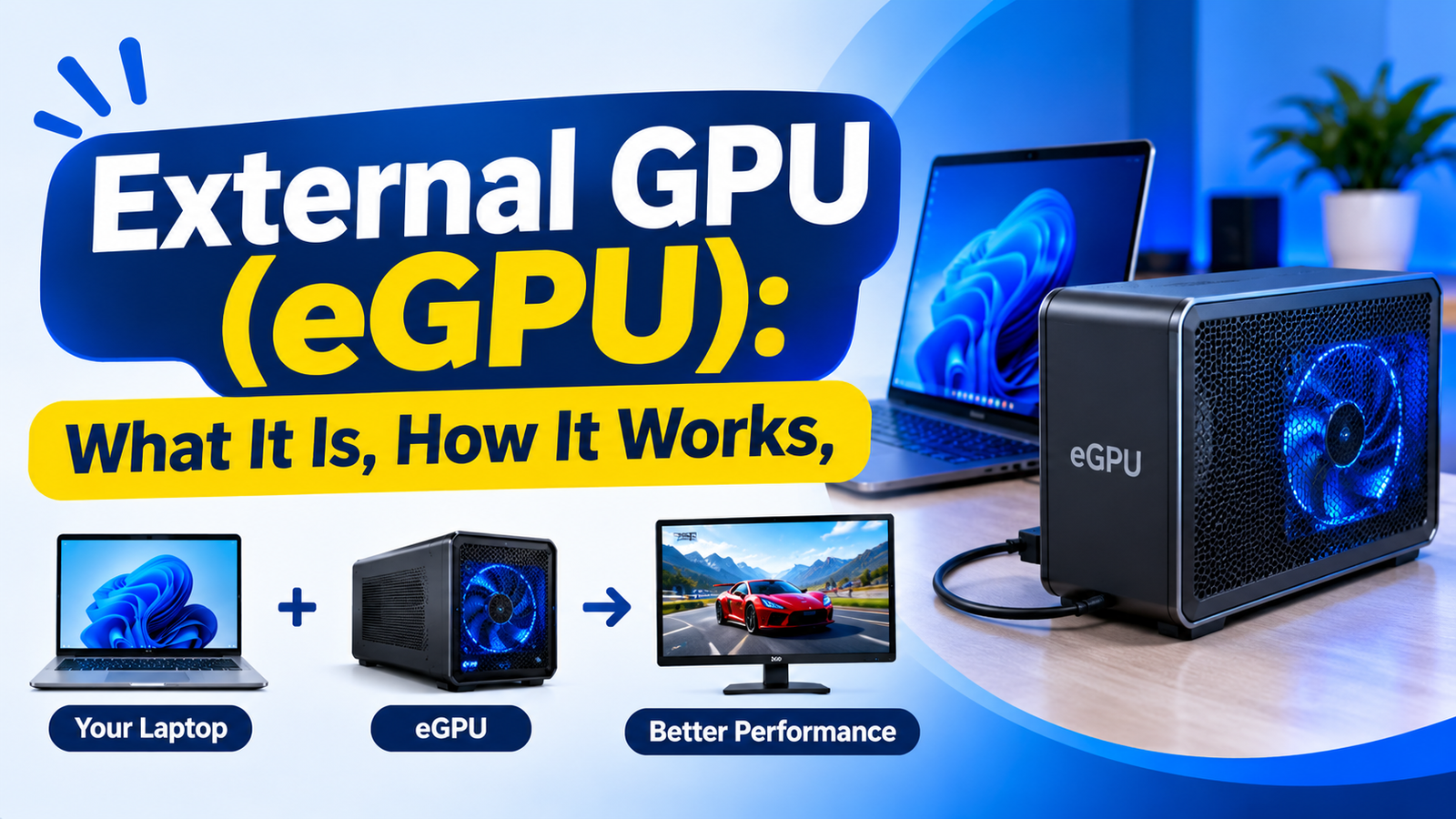
An external GPU, or eGPU, is a desktop graphics card that lives in a separate box and connects to your laptop or mini PC through a high-speed cable. You plug it in, install the drivers, and suddenly a thin laptop that struggled with games or 3D work can use a full-size graphics card.
Quick answer: An external GPU is a graphics card installed in an enclosure (or dock) and linked to a computer through Thunderbolt, USB4, or OCuLink. It boosts graphics performance on machines that lack a powerful built-in GPU, but you lose some performance to the cable’s limited bandwidth compared with a card in a normal desktop slot.
I’ve been building and troubleshooting PCs for a long time, and few topics split opinion like eGPUs. Some people love them. Others call them an expensive compromise. Both camps are partly right, and this guide will show you where the truth sits, so you can decide before spending a rupee, dollar, or euro.
What Is an External GPU?
A graphics card normally sits inside a PCIe x16 slot on a desktop motherboard. Laptops can’t do that, because there’s no room, no cooling, and no power budget for a big card. An eGPU solves this by moving the card outside.
The setup has three parts:
- The graphics card: usually a standard desktop card from NVIDIA GeForce, AMD Radeon, or sometimes Intel Arc.
- The enclosure or dock: a box with a PCIe slot, a power supply, and cooling.
- The connection: a Thunderbolt, USB4, or OCuLink cable running back to the computer.
Your laptop sends rendering work through the cable, the card does the heavy lifting, and the result is displayed either on an external monitor plugged into the card or sent back to the laptop’s own screen.
eGPU vs. Internal Laptop GPU vs. Desktop GPU
A laptop GPU is soldered in or built into the chip, runs at lower power, and can’t be upgraded. A desktop GPU in a desktop PC gets the full PCIe x16 link, so nothing holds it back. An eGPU sits between the two: you get desktop silicon, but through a narrower pipe. That narrow pipe is the whole story, and we’ll get to it shortly.
How Does an eGPU Work?
Think of the connection as a hose. The graphics card is a powerful pump, but the hose limits how much data moves between the card and the CPU every second.
Inside a desktop, the GPU talks to the CPU over 16 PCIe lanes. Most eGPU connections give it the equivalent of four lanes. Thunderbolt and USB4 tunnel PCIe traffic through the cable, while OCuLink exposes PCIe lanes more directly, which is why it usually has less overhead.
The flow looks like this:
- Your game or app sends draw calls, textures, and commands to the GPU.
- These travel through the cable into the enclosure.
- The graphics card renders the frame.
- The finished frame goes to a monitor on the card’s ports, or back through the cable to the laptop display.
That last step matters. Sending frames back to the laptop’s built-in screen uses extra bandwidth, so an external monitor connected straight to the eGPU generally performs better.
eGPU Connection Types Explained
Thunderbolt 3 and Thunderbolt 4
Thunderbolt 3 and 4 both offer 40 Gbps. After overhead, the PCIe data portion is lower than that figure, which is why people see a noticeable gap compared with a desktop slot. Thunderbolt 4 mainly raises the minimum feature requirements, such as stricter certification, rather than raising raw speed. Both are plug-and-play friendly, support hot-plugging in many cases, and can charge your laptop through the same cable if the enclosure supports power delivery.
Thunderbolt 5
Thunderbolt 5 doubles the base bandwidth to 80 Gbps in each direction, with a Bandwidth Boost mode that can reach 120 Gbps in one direction for display-heavy setups. For eGPUs, it’s the first Thunderbolt generation that can meaningfully narrow the gap with desktop performance, though it needs both a laptop and an enclosure that support it. Availability is still growing, so check your exact laptop model’s specifications.
USB4
USB4 is built on the Thunderbolt 3 protocol and commonly runs at 40 Gbps, though some ports are limited to 20 Gbps. Many AMD-based laptops and mini PCs use USB4. Support for PCIe tunneling, which eGPUs rely on, is not guaranteed on every USB4 port, so always confirm before buying.
OCuLink
OCuLink is a cable standard that carries PCIe signals with minimal translation. A common OCuLink port gives a PCIe 4.0 x4 link, which is roughly 64 Gbps of raw bandwidth. It’s popular with mini PCs and handheld gaming PCs, and docks like the Minisforum DEG1 and ADT-Link boards are well known in enthusiast circles. The trade-offs: there’s no hot-plugging on most setups, you usually need to power things on in the right order, and it doesn’t carry power or USB data like Thunderbolt does.
Proprietary Connectors
A few brands use their own connectors, such as ASUS’s ROG XG Mobile. These can offer excellent bandwidth but only work with specific laptops, so they’re a closed ecosystem.
Quick Comparison
| Connection | Typical Bandwidth | Hot-Plug | Best For |
|---|---|---|---|
| Thunderbolt 3 / 4 | 40 Gbps | Usually yes | Most Windows laptops |
| Thunderbolt 5 | 80 Gbps (120 Gbps boost) | Usually yes | Newer premium laptops |
| USB4 | 20–40 Gbps | Varies | AMD laptops, mini PCs |
| OCuLink | Up to about 64 Gbps (PCIe 4.0 x4) | Generally no | Mini PCs, DIY builders |
What Do You Need to Build an eGPU Setup?
A Compatible Laptop or Mini PC
Look for a full-featured Thunderbolt 3/4/5 port, a USB4 port with PCIe tunneling, or an OCuLink port. A plain USB-C port that only does USB 3 or DisplayPort will not work. The Thunderbolt logo (a small lightning bolt) is your best clue, but still check the manufacturer’s spec sheet.
An eGPU Enclosure
Popular enclosures include the Razer Core X, Sonnet Breakaway Box, Akitio Node series, and Mantiz models. Key things to check:
- Card size support: many enclosures fit cards up to roughly 2.5 to 3 slots wide, but triple-slot flagships can be a tight squeeze.
- Power supply: the enclosure PSU must handle your graphics card. A mid-range card is fine on most; a high-end card may need a bigger unit or a bring-your-own-PSU enclosure.
- Laptop charging (power delivery): many enclosures charge your laptop at around 60 to 100 W. Check that this is enough for your machine.
- Cooling and noise: small fans can get loud under load.
A Graphics Card
Any compatible desktop card can work, but not every card makes sense. Because of the bandwidth limit, extremely expensive flagship cards often waste potential in an eGPU. A mid-range to upper-mid-range card typically gives the best value per rupee spent.
A Monitor and Cables
Use a Thunderbolt-certified cable. A cheap, uncertified cable is one of the most common reasons for random disconnects.
How Much Performance Do You Lose with an eGPU?
There’s no single number, and anyone quoting one without naming the game, resolution, laptop, and connection is guessing. What I can say honestly is this:
- Over Thunderbolt 3/4 or USB4 (40 Gbps), expect a noticeable drop compared with the same card in a desktop. It varies by title, and CPU-heavy or high-frame-rate games usually feel it more.
- At higher resolutions like 1440p and 4K, the gap tends to shrink, because the GPU becomes the bottleneck rather than the data link.
- Over OCuLink, the penalty is generally smaller than Thunderbolt, because of the more direct connection.
- Using the laptop’s internal display typically costs more performance than using an external monitor attached to the eGPU.
- Your laptop’s CPU matters. A weak CPU can hold back a strong GPU, no matter how it’s connected.
If you want hard numbers for a specific combination, look for independent benchmark testing of your exact laptop, enclosure, and card rather than trusting generic claims.
Is an eGPU Worth It? Pros and Cons
Advantages
- A big graphics upgrade for a thin laptop, without replacing the whole machine.
- Portability at work, power at home. Carry a light ultrabook during the day and plug into the eGPU at your desk.
- Upgradeable. You can swap the card later while keeping the enclosure.
- Extra ports. Many enclosures add USB, Ethernet, and charging.
Drawbacks
- Bandwidth bottleneck compared with a desktop slot.
- Cost. An enclosure plus a card often costs about as much as a decent gaming desktop. Do the math before committing.
- Bulk. It’s portable in theory, but it’s a box, a cable, and a power brick.
- Compatibility quirks, especially around drivers, firmware, and BIOS settings.
The Honest Take
If you already own a good Thunderbolt laptop and want better graphics at home, an eGPU can be a smart move. If you’re starting from zero and only game, a desktop PC or a gaming laptop usually gives you more performance for the same money. An eGPU makes the most sense when a thin, light laptop is your priority and graphics power is a bonus you want on demand.
Best Use Cases for an External GPU
Gaming
Most people buy an eGPU for gaming. Esports titles and many modern games run well when paired with a sensible card, especially on an external monitor. Fast-paced competitive games running at very high frame rates tend to expose the bandwidth limit more than slower, GPU-bound games.
Video Editing and 3D Rendering
Applications like Blender, DaVinci Resolve, and Adobe Premiere Pro can use the GPU for effects, encoding, and rendering. Many of these workloads send data to the card, let it crunch for a while, and bring back results, so they’re often less sensitive to bandwidth than gaming. That makes eGPUs a practical choice for creators.
AI, Machine Learning, and Compute
For local AI experiments, an NVIDIA card with plenty of VRAM can run models and training jobs through an eGPU. Once the model is loaded into video memory, the connection matters less. VRAM size is usually more important than the cable.
Handheld PCs and Mini PCs
Handheld gaming PCs and compact mini PCs with OCuLink or USB4 ports have become a natural home for eGPUs, giving small devices a desktop-class boost at a desk.
eGPU for Mac Users
This is an area where many people get misled. Intel-based Macs supported eGPUs, mainly with certain AMD Radeon cards, for a period of macOS versions. Apple Silicon Macs (M1 and later) do not support eGPUs. If you have an Apple Silicon Mac, an external graphics card is not an option, regardless of what an enclosure’s marketing says. If you want the same idea on a Mac, you’re better off choosing a chip configuration with stronger built-in graphics.
How to Set Up an eGPU: Step by Step
- Confirm compatibility. Check your laptop’s ports and whether the manufacturer lists eGPU support.
- Install the graphics card in the enclosure and connect any required PCIe power cables.
- Update your laptop’s BIOS, firmware, and Thunderbolt drivers before connecting anything.
- Connect the cable to the laptop’s Thunderbolt, USB4, or OCuLink port, using the one the enclosure came with if possible.
- Approve the device if Windows or your security software asks for Thunderbolt authorization.
- Install the latest GPU drivers from NVIDIA, AMD, or Intel. Clean installs help avoid conflicts with the laptop’s built-in graphics.
- Plug your monitor into the eGPU, then set the app or game to use the external card in Windows Graphics settings or the vendor control panel.
- Test with a demanding game or benchmark and check temperatures and stability.
OCuLink setups differ slightly: since most don’t hot-plug, connect everything first, then power on the dock and the PC in the order the manufacturer recommends.
Common eGPU Problems and Fixes
- Card not detected: try another port, replace the cable, reseat the card, or update Thunderbolt firmware.
- Error 43 on Windows: often a driver or power issue. Reinstall drivers cleanly and verify the card’s power cables.
- Low performance: make sure the game is running on the eGPU, not the integrated graphics, and try an external monitor.
- Random disconnects: usually a cable, port, or power delivery problem.
- Laptop not charging: the enclosure’s power delivery may be lower than your laptop needs.
- Linux users: Thunderbolt authorization tools such as bolt help, and driver support is generally good, but expect more manual setup.
Who Should Buy an eGPU, and Who Shouldn’t?
It’s a good fit if you already own a laptop with strong Thunderbolt or OCuLink support, you value a light machine, and you want better graphics at your desk.
Skip it if you mainly need top frame rates and best value, you have an Apple Silicon Mac, or your laptop’s CPU is too weak to feed a modern graphics card.
Alternatives to an eGPU
- Gaming laptop: everything built in, no extra cables, but heavier.
- Desktop PC: best performance per dollar and easy to upgrade.
- Cloud gaming: no hardware to buy, but it depends on a fast, stable internet connection.
- Remote desktop to a home PC: useful if you already own a powerful machine elsewhere.
Frequently Asked Questions About External GPUs
1. What is an external GPU (eGPU)?
An eGPU is a desktop graphics card housed in an external enclosure and connected to a laptop or mini PC through Thunderbolt, USB4, or OCuLink. It gives the computer extra graphics power that the built-in GPU can’t provide.
2. Does an eGPU really improve performance?
Yes, in most cases. A laptop with integrated graphics will see a very large jump in games and GPU-accelerated apps. A laptop that already has a strong dedicated GPU will see less benefit, and the gain depends on the card, connection, and workload.
3. How much performance do you lose with an eGPU compared with a desktop?
It depends on the connection, game, resolution, and CPU. Thunderbolt and USB4 usually lose more than OCuLink, and the loss is often smaller at higher resolutions. Check independent tests for your exact setup rather than relying on a general figure.
4. Which is better for an eGPU: Thunderbolt or OCuLink?
OCuLink usually offers more bandwidth and less overhead, so it’s often faster. Thunderbolt is easier to use, supports hot-plugging, and can carry power and USB data. Choose OCuLink for performance on a mini PC, Thunderbolt for convenience on a laptop.
5. Can any laptop use an external GPU?
No. The laptop needs a full Thunderbolt 3/4/5 port, a USB4 port with PCIe tunneling, or an OCuLink port. A standard USB-C port that only supports USB data or video output won’t work.
6. Can I use an eGPU with a MacBook?
Intel-based Macs could use certain AMD cards on supported macOS versions. Apple Silicon Macs, including all M-series MacBooks, do not support eGPUs.
7. What graphics card is best for an eGPU?
A mid-range to upper-mid-range card from NVIDIA GeForce, AMD Radeon, or Intel Arc usually gives the best balance. Top-end flagships cost a lot and are more likely to be held back by the connection. Match the card to your enclosure’s power supply and size limits.
8. Do I need an external monitor with an eGPU?
Not strictly, since most setups can send the image back to the laptop screen. However, plugging a monitor directly into the eGPU usually gives better performance because it avoids extra data traveling back through the cable.
9. Is an eGPU better than a gaming laptop?
It depends. A gaming laptop is simpler, fully portable, and often better value if you want to game. An eGPU suits people who prefer a thin laptop and want extra power only when they’re at a desk.
10. Can an eGPU damage my laptop?
A properly designed, certified enclosure and cable should not. Problems typically come from cheap cables, poor power delivery, or unsupported configurations. Use reputable hardware and follow the manufacturer’s guidance.
11. Can I use an eGPU for AI or rendering?
Yes. Rendering and AI workloads often depend more on the card’s compute power and VRAM than on the cable, so they can suit eGPUs well. An NVIDIA card with plenty of VRAM is a common choice for these tasks.
12. Is an eGPU worth buying in 2026?
It’s worth it if you already own a compatible laptop and want a flexible upgrade. If you’re buying everything from scratch, compare the total price with a desktop or gaming laptop first, because those often deliver more performance for the money.
Final Thoughts
An external GPU won’t magically turn every laptop into a desktop, and it’s not the cheapest way to get fast graphics. But for the right person, it’s a genuinely clever way to combine a light, everyday laptop with real graphics muscle at home. Check your ports, pick a sensible card, buy a quality enclosure, and set your expectations honestly. Do that, and an eGPU can serve you well for years.
Before buying, always verify compatibility on the laptop manufacturer’s and enclosure maker’s official pages, since models and support change often.
