



Your GPU is cooking. The fans are screaming. The numbers keep climbing. Is this normal? Or is something breaking inside your rig right now? Most people panic when they see 80°C on their GPU monitor. They shouldn’t. But some people ignore 95°C like nothing is wrong. They should worry.
The truth lives in the middle. This guide cuts through the noise. No vague advice. No generic numbers. Just real answers built for real hardware in 2026.
What Does “Safe GPU Temperature” Actually Mean?
Safe does not mean cool. Safe means your GPU is operating within the thermal limits it was designed for. Modern GPUs are engineered to run hot. NVIDIA and AMD build their cards to handle sustained temperatures up to 90–95°C before any damage risk appears. Below that threshold? Your card is doing its job.
Three things define what “safe” means for your specific GPU. First is the workload, idle browsing generates almost no heat while 4K gaming or AI rendering demands full power draw. Second is your cooling system, airflow quality, fan count and thermal paste all shape how efficiently heat escapes the card.
Third is the GPU model itself, a flagship RTX 5090 with a triple-fan vapor chamber handles heat very differently than a compact budget RX 7600 with a single fan. Stop comparing your temperatures to random forum posts. Compare them to your GPU’s actual thermal spec.
Normal GPU Temperature Ranges in 2026
Idle Temperature: Desktop and Light Use
Sitting at your desktop. Browsing the web. Watching YouTube. Your GPU is barely working. The normal idle range sits between 30°C and 45°C. Temperatures below 30°C usually mean aggressive fan curves or a genuinely cold room. Above 50°C at idle? That suggests a real airflow or dust problem worth investigating right away.
Gaming Temperature: AAA Titles and Esports
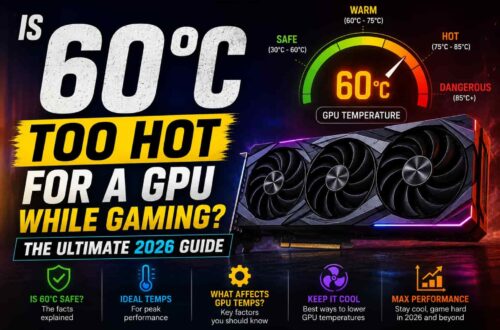
This is where most people get anxious. Your GPU is under real load. The fans spin up. The numbers climb fast. The normal gaming range runs between 65°C and 85°C. Playing Cyberpunk 2077 at ultra settings and hitting 82°C is completely normal. NVIDIA RTX 40 and 50 series cards are deliberately designed to boost clock speeds right up to their thermal limit. That behavior is intentional engineering. It is not a problem.
Heavy Workload Temperature: Rendering, AI, and Video Editing
Running Blender. Training an AI model. Encoding 8K video. This is a full sustained load, harder and longer than any game. Expect temperatures between 75°C and 90°C here. These tasks hold the GPU at maximum power draw for extended periods. Higher temps in this range are expected and acceptable for the workload.
Stress Test and Benchmark Extremes
FurMark. 3DMark. Synthetic loads that deliberately push beyond anything real-world use produces. Hitting 90°C during a stress test is not a death sentence. It is a stress test. It was designed to produce extreme heat. The expected range here is 80°C to 95°C and staying within that window means your cooling system is functioning properly.
GPU Core Temperature vs Junction and Hotspot Temperature
This single confusion causes more unnecessary panic than anything else in PC building forums.
Core temperature is the average reading across the entire GPU die. This is what Windows Task Manager shows. This is what GeForce Experience reports. When someone says “my GPU is at 80°C” they almost always mean core temperature.
Junction temperature, also called hotspot temperature, is the reading from the single hottest point on the GPU chip. It is always higher than core temperature and will always look alarming to someone who does not understand what they are reading.
On NVIDIA RTX 40 and 50 series cards the hotspot typically runs 10–20°C above core temperature. Completely by design.
On AMD RDNA 3 and RDNA 4 cards covering the RX 7000 and RX 9000 series AMD deliberately allows hotspots to reach 20–35°C above core temperature. A 100°C hotspot sitting alongside a 70°C core is completely normal operation. AMD built it that way intentionally to allow the chip to extract maximum performance efficiently.
Do not panic about hotspot readings until the core temperature itself crosses danger thresholds.
GPU Temperature Zones: What Each Level Means
Instead of a table here is what each temperature zone actually tells you in plain language.
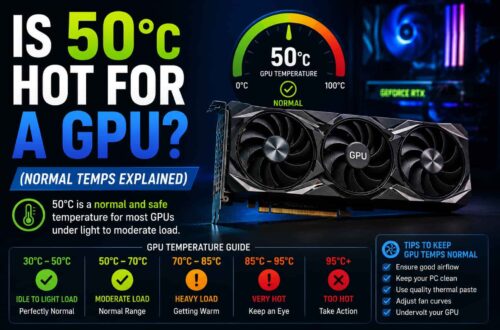
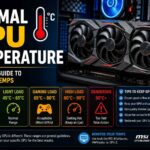
The Green Zone — Safe and Normal. At idle you want 30°C to 45°C. During gaming 65°C to 85°C is healthy. During heavy rendering or AI workloads 75°C to 90°C is expected. Your GPU is working as designed. No action needed.
The Yellow Zone — Worth Watching. Idle temps above 50°C suggest airflow issues. Gaming temps between 86°C and 90°C on a desktop NVIDIA card mean your cooling is being pushed to its limit. Performance may stay fine but this is a signal to check dust levels and case airflow before things get worse.
The Red Zone — Act Now. Core temperatures above 91°C during gaming or above 96°C during rendering on desktop GPUs are genuinely high. Sustained operation here accelerates component wear. If your card regularly hits these numbers something in your cooling chain needs fixing.
The Shutdown Zone — Emergency Territory. Past 100–105°C most GPUs trigger automatic emergency shutdown. If this happens during a stress test once it is not catastrophic. If it happens during normal gaming you have a serious hardware or cooling failure that needs immediate attention.
When GPU Temperature Actually Becomes Dangerous
Heat only becomes dangerous when it is sustained above safe limits or accompanied by real performance symptoms.
Thermal Throttling: The First Warning
This is your GPU’s first line of defense. When core temperatures climb past the throttle threshold, roughly 83°C to 85°C on most NVIDIA cards, the GPU automatically reduces clock speeds. Performance drops. Frame rates fall. Heat generation decreases.
You will notice throttling as sudden FPS dips in demanding scenes. The card is protecting itself. That is good engineering. But consistent throttling during normal gaming means your cooling system needs attention.
Automatic Emergency Shutdown
If temperatures climb past roughly 100°C to 105°C most GPUs trigger a hard shutdown. Your display goes black. Your PC powers off or reboots instantly.
This is the GPU saving itself from permanent damage. It is a last resort protection mechanism. If it happens once during a synthetic stress test it is not catastrophic. If it happens during a normal gaming session you have a serious cooling failure that needs fixing before you use the card again.
Artifacting and Visual Corruption
Strange colors appearing on screen. Flickering textures. Random blocks of wrong pixels. These are artifacting symptoms. They can indicate overheating but can also signal VRAM defects or driver corruption.
When artifacting appears alongside temperatures in the red zone that combination is a clear and serious warning sign. Stop the session. Investigate the cooling system.
The Real Danger Signs to Watch For
FPS drops that appear suddenly mid-game and recover after a few seconds almost always point to thermal throttling happening in real time. A sudden black screen with no warning is usually an emergency temperature shutdown. Random crashes or BSODs during GPU-heavy workloads suggest sustained heat is creating instability.
Fans screaming at maximum RPM constantly means the cooler is overwhelmed and the heat is not dissipating fast enough. These are the symptoms that deserve immediate action. Rising numbers on a monitor with none of these symptoms? That is just your GPU doing its job.
Why Your GPU Temperature Rises
Heavy GPU Workloads
More pixels. More polygons. More compute. Your GPU draws more power and generates more heat. This is simple physics. Higher graphics settings equal higher power consumption equals higher temperatures.
Poor Case Airflow
A case with blocked intake vents or no dedicated exhaust fans traps hot air inside the chassis. Your GPU then tries to cool itself by pulling in air that is already warm. Case airflow is the single biggest factor in GPU thermals beyond the GPU cooler itself. One good front intake fan and one rear exhaust fan can drop GPU temperatures by 8–12°C.
Dust Buildup
Dust clogs heatsink fins and coats fan blades. Even a thin uniform layer of dust acts as insulation and significantly reduces how efficiently heat transfers from the fins to the airflow passing through them. A dusty GPU can run 10–15°C hotter than a freshly cleaned one. Clean your card with compressed air every three to six months.
High Ambient Room Temperature
A 35°C room pushes all component temperatures higher. Your GPU cannot cool below the temperature of the air entering the case. Gaming in a hot room in summer naturally produces higher GPU temperatures than gaming in an air-conditioned space. This is normal and expected.
Overclocking and Voltage Increases
Higher clock speeds consume more power. More power means more heat. Pushing a GPU 10% above stock clocks can increase heat output by 15–25% depending on the voltage curve. Overclocking without addressing the cooling setup first is asking for sustained high temperatures.
Laptop Thermal Constraints
Laptops are designed for portability not cooling headroom. Thin vapor chambers. Minimal fan blade surface area. Shared cooling between CPU and GPU in many designs. Laptop GPUs regularly reach 85°C to 95°C under gaming load and this is completely normal for the platform. The engineering trade-off between thinness and cooling is deliberate.
GPU Cooling Systems Explained
Heat Pipes and Vapor Chambers
Heat pipes use a sealed tube of phase-change fluid to carry heat rapidly from the GPU due to the heatsink fins. Vapor chambers do the same thing but across a flat plate covering the entire chip. More surface contact means more even heat distribution and better cooling performance at the same fan speed. High-end GPUs almost universally use vapor chambers today.
Heatsink Fins and Fan Arrays
Aluminum fins attached to the vapor chamber or heat pipes massively increase the surface area exposed to airflow. The fans push or pull air through these fins. More fins plus faster airflow equals lower temperatures. Triple-fan GPU coolers on flagship cards are not aesthetic choices. They move significantly more air than dual-fan designs at lower noise levels.
Zero RPM Mode
Many modern GPUs stop their fans completely during idle and light gaming loads. This is Zero RPM mode. The GPU relies entirely on passive convection cooling through the heatsink. Temperatures may climb to 50–60°C before the fans kick in. This is completely intentional and designed to eliminate fan noise during non-demanding use. Do not be alarmed when your GPU fans stop spinning at the desktop.
GPU Thermal Throttling: The Full Picture
Throttling is not failure. Throttling is a feature. When your GPU hits its thermal limit the driver automatically reduces core clock speeds. The GPU generates less heat. Temperatures stabilize. Performance recovers slightly and holds at a lower level.
Think of it as cruise control for heat management. The card will not destroy itself chasing maximum performance. It will slow down and protect itself instead.
To detect throttling in real time, open MSI Afterburner and watch core clock speeds during a demanding game scene. A sudden drop of 100–200 MHz in core clock while GPU utilization remains high at 99% is thermal throttling happening live. HWiNFO64 goes further and shows a dedicated Thermal Throttle flag that lights up the moment it occurs. High utilization with falling clock speeds is the clearest real-world confirmation.
Consistent throttling during normal gaming sessions means your cooling solution is undersized or compromised for your workload. Fix the airflow. Clean the dust. Tune the fan curve. Those three actions solve the majority of throttling problems.
Laptop vs Desktop GPU Temperatures: Why the Gap Exists
Desktop GPUs sit inside full-size cases with room for large three-fan coolers. They pull fresh air from case intakes and exhaust it through rear vents with a well-designed airflow path. Normal gaming temperatures sit between 65°C and 80°C on a well-cooled desktop.
Laptop GPUs live inside a chassis a few millimetres thick. The vapor chamber is a fraction of the size. The fans are small. The intake vents sit on the bottom panel and get partially blocked when the laptop rests on fabric surfaces. The GPU shares cooling pipes with the CPU in many thin-and-light designs. All of this pushes normal gaming temperatures up to 75°C to 90°C on laptops.
This is not a design flaw. It is a considered engineering trade-off. A laptop GPU running at 88°C during a demanding game is doing exactly what it was built to do. The panic is not warranted. What is warranted is keeping the laptop on a hard flat surface for airflow and periodically cleaning the vents.
Desktop cooling is superior. Laptop cooling is optimized for size. Both platforms operate within their respective thermal envelopes safely.
How to Monitor GPU Temperature Like a Pro
MSI Afterburner
The most widely used GPU monitoring tool in the world. Real-time graphs for core temperature, hotspot, clock speed, utilization, fan RPM, and power draw. The on-screen overlay lets you see all this data during games without alt-tabbing. Free to download and works with both NVIDIA and AMD cards.
HWiNFO64
The most detailed free monitoring tool available. Shows every temperature sensor on every component including memory junction temperature. It also flags thermal throttle events with a dedicated indicator. Use this when you want the complete picture of what your GPU is doing.
GPU-Z
Lightweight and focused. Excellent for checking exact GPU specifications alongside live sensor readings. Shows hotspot temperature alongside core temperature which helps you understand the gap between the two values on your specific card.
AMD Adrenalin Software
Built directly into AMD Radeon drivers. Shows core temperature and hotspot in a clean performance overlay. No extra software installation required for AMD card owners. Access it through the Radeon overlay during any game.
Windows Task Manager
Press Ctrl + Shift + Esc. Click the Performance tab. Select GPU on the left sidebar. Basic core temperature is visible here instantly without downloading anything. Good for a quick check but lacks the detail of dedicated tools.
How to Reduce GPU Temperature Safely
Clean the Dust First
This is always step one. Compressed air blasted into the GPU heatsink fins removes accumulated dust that has been insulating the heatsink for months. Do this before any other intervention. It costs nothing and frequently drops temperatures by 5–15°C on its own.
Fix Case Airflow
Add intake fans at the front of the case. Add exhaust fans at the rear and top. Manage cables away from the main airflow path between intake and GPU. This is the cheapest significant cooling upgrade you can make and it benefits every component in the system simultaneously.
Tune the Fan Curve
MSI Afterburner lets you draw a custom fan speed curve. Set the fans to spin up earlier, at 65°C instead of 75°C for example. The cooler gets a head start before temperatures climb. The noise increase is minor. The temperature benefit is meaningful.
Undervolt the GPU
Undervolting reduces the voltage supplied to the GPU at its operating clock speeds. Less voltage means less power consumed. Less power means less heat generated. Performance in games typically stays within 1–2% of stock. Temperatures often drop 5–10°C. This is completely safe and fully reversible by resetting to default settings.
Repaste the GPU
If your card is two or more years old the factory-applied thermal paste between the GPU die and the heatsink block may have degraded. Dried thermal paste loses conductivity. Replacing it with a high-quality compound like Thermal Grizzly Kryonaut can drop temperatures by 8–12°C on older cards. This process voids warranties so only consider it for cards outside their warranty period.
Conclusion: Stop Panicking. Start Monitoring.
Here is the truth about GPU temperatures in 2026. Your card was built to run hot. The engineers who designed it set those thermal limits deliberately. A GPU hitting 82°C during a heavy gaming session is not asking for help. It is performing exactly as intended.
The real danger lives in ignored symptoms. Consistent FPS drops during normal sessions. Random crashes with no apparent cause. Visual glitches and artifacting during everyday gaming. Those are the signals worth acting on. The temperature number alone without symptoms tells you almost nothing alarming.
Check your temperatures with HWiNFO64 or MSI Afterburner. Know your baseline. Clean the dust every few months. Set a sensible fan curve. Improve case airflow if sustained temps consistently exceed 85°C during gaming on a desktop card. Do those things and your GPU will outlast your desire to upgrade it. Stop watching the temperature graph. Start playing the game.
Frequently Asked Questions
Is 80°C GPU temperature safe while gaming?
Yes. Completely safe for almost every modern GPU on the market. NVIDIA cards do not begin thermal throttling until 83–85°C. AMD cards tolerate higher still. Hitting 80°C during a demanding AAA title at high settings is normal and expected behavior. Nothing needs to be fixed.
Is 90°C too hot for a GPU?
It depends entirely on the GPU and context. For desktop NVIDIA cards sustained 90°C during normal gaming warrants attention — check dust levels and airflow. For AMD RDNA 3 and RDNA 4 cards 90°C core temperature is within specification. For laptop GPUs 90°C under heavy gaming load is often completely normal given the thermal constraints of the platform.
What temperature does GPU thermal throttling start?
Most NVIDIA GeForce RTX 40 and 50 series cards begin reducing boost clocks around 83°C to 85°C. AMD Radeon cards with RDNA 3 and RDNA 4 architecture typically throttle closer to 90°C to 95°C core temperature. Exact thresholds vary by specific model and BIOS settings.
Why is my GPU hotspot temperature so much higher than core temperature?
This is intentional by design. The hotspot sensor reads the single hottest point on the GPU die rather than an average across the whole chip. On AMD RDNA 3 cards a hotspot reading 25–35°C above core temperature is completely normal operation. On NVIDIA RTX cards a 10–20°C gap between core and hotspot is typical. The core temperature remains the meaningful number to monitor for safety purposes.
How do I know if my GPU is actually overheating versus just running warm?
Overheating produces symptoms. FPS drops mid-game that recover after a few seconds. Visual artifacting on screen. Sudden crashes or black screens. Emergency shutdowns. Running warm with stable performance and none of these symptoms is not overheating. It is simply a GPU doing its job. High numbers with zero symptoms means zero problems.
Can sustained high GPU temperatures permanently damage my card?
Sustained operation above 95°C core temperature over many months can accelerate thermal degradation of capacitors and dry out thermal paste faster than normal aging. Brief peaks to 90–95°C during demanding workloads will not cause immediate permanent damage. The GPU’s thermal protection systems exist precisely to prevent that outcome.