

You fire up your PC, glance over at your graphics card and the fans are completely still. Not spinning slowly. Not barely moving. Totally stopped. If you have never seen this before, it feels like something went wrong. Maybe a bad installation. Maybe a dead card. Maybe you just wasted a lot of money.
In almost every case, none of that is true. What you are seeing is a deliberate design choice that every major GPU manufacturer ships by default. This guide explains what is actually happening, when silence is healthy, when it becomes a warning sign and everything in between.
What GPU Fans Really Do Inside Your Graphics Card
GPU fans are not like a ceiling fan that just runs all day. They are part of a reactive cooling system that responds to heat. The GPU chip produces heat, that heat travels through a metal baseplate into copper heat pipes, spreads across a large aluminum fin stack and the fans push air through those fins to remove the heat from the case.
The key word is reactive. Fans respond to heat. When there is no meaningful heat to move, there is no engineering reason to spin them. Modern GPUs measure die temperature constantly and signal the fan controller to adjust speed accordingly, including all the way down to zero.
Why This Changed Over the Years
Older graphics cards ran fans at a constant low speed regardless of what the GPU was doing. Simple but flawed. It created unnecessary noise, wore out bearings over thousands of hours, and wasted power cooling a chip sitting at 38 degrees watching a video.
As cooler designs improved and acoustics became a genuine selling point, manufacturers built heatsinks with enough passive capacity to handle idle heat without any fans running at all.
Do GPU Fans Always Spin?
No. Modern GPUs very often do not spin at idle, and this is completely intentional. The feature has a name. It is called Zero RPM Mode, and virtually every aftermarket dual-fan and triple-fan card released after 2019 ships with it enabled by default.
ASUS calls it 0dB Technology. MSI calls it Zero Frozr. Gigabyte uses the name SILENT Mode. Sapphire uses Intelligent Fan Control. NVIDIA’s own Founders Edition cards on the RTX 30 and 40 series use a similar semi-passive approach out of the box. The name changes but the behavior is identical across all of them. Fans stay off until the GPU reaches a defined temperature, then they engage and follow a speed curve tied to how hot the chip gets.
GPU fans not spinning at idle is not a defect. It is a tuned feature. The heatsink is doing passive cooling work. The fans will engage the moment the GPU genuinely needs them.
What Is Zero RPM Mode?
The Temperature Threshold
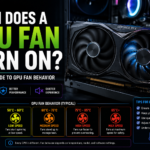
Zero RPM mode tells the GPU’s fan controller to keep fans completely stopped when temperature stays below a set point. That threshold typically sits between 50 and 65 degrees Celsius depending on the card’s firmware and how the manufacturer calibrated it. Below that temperature, the heatsink and heat pipes handle all thermal dissipation on their own without any fan movement.
How Heat Pipes Work Without Fans
Heat pipes use a phase-change cycle to move heat silently. A small amount of fluid sealed inside a copper tube absorbs heat at the hot end, vaporizes, travels to the cooler end of the pipe, condenses back into liquid, and wicks back through a porous internal lining by capillary action. This cycle repeats continuously with no moving parts and no noise.
A typical triple-fan GPU cooler has four to eight of these heat pipes drawing heat away from the chip and spreading it across hundreds of aluminum fins. That is a substantial amount of passive surface area, easily enough to keep a modern GPU at safe temperatures during idle use without a single fan revolution.
Why This Is Good for Your Card
Fans that spin less accumulate fewer hours on their bearings, which extends their operational lifespan. The card is completely silent during tasks that do not need performance. And because fans ramp up from a full stop rather than from a low baseline, the thermal response is smoother and the transition into active cooling is more gradual and less acoustically noticeable.
When Do GPU Fans Start Spinning?
Gaming
This is the most common trigger. A demanding game pushes GPU utilization to 95 to 99 percent within seconds of loading. Even a card sitting quietly at 42 degrees will climb past its fan-start threshold within 30 to 60 seconds once a serious game begins. Fans then ramp up progressively along a speed curve rather than jumping to full speed immediately.
Rendering and AI Workloads
3D rendering in Blender, video encoding in DaVinci Resolve, and running local AI models like Stable Diffusion often push temperatures higher than gaming because these workloads saturate compute and VRAM at the same time without the frame-by-frame variation that games produce. Expect fans to run at sustained moderate to high speeds for the entire duration of these tasks.
Warm Room Temperatures
A GPU in a 35-degree room hits its fan threshold faster and at lower workloads than the same card in a 20-degree room. Ambient temperature has a direct additive effect on GPU heat. In summer or poorly ventilated rooms, fans may spin during tasks that leave them completely silent during winter. That is expected, not a problem.
Benchmarking and Stress Tests
Tools like 3DMark, Furmark, and Unigine Superposition push the GPU deliberately beyond what games typically demand. Furmark in particular generates more heat than most real workloads because it bypasses some of the power management behaviors that gaming workloads trigger. These are where you see peak temperatures and maximum fan speeds, and they are designed to work that way.
Normal GPU Temperature Ranges
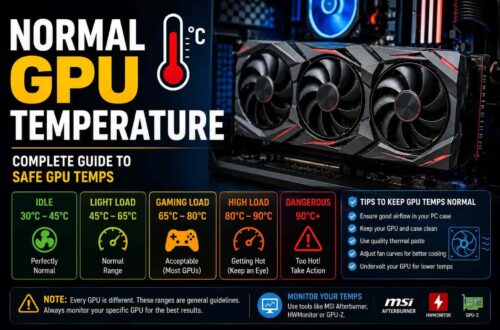
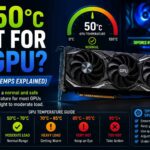
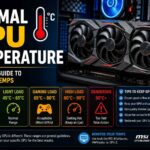
Knowing what temperature numbers to expect removes a lot of anxiety when you are monitoring your card for the first time. At idle with nothing demanding running, most GPUs sit between 30 and 50 degrees Celsius. Fans are off. Passive cooling handles everything comfortably at this range.
During light tasks like web browsing, video playback, or light productivity work, temperatures typically stay between 40 and 60 degrees. Fans may remain off or just begin to engage at the low end of their speed curve.
Under moderate gaming, expect core temperatures between 65 and 78 degrees Celsius. This is the normal working range for an actively cooled GPU and fans will be spinning at a reasonable speed to hold temperatures steady.
Under demanding gaming or sustained rendering work, 78 to 88 degrees is the typical range. Fans will be running at higher speeds. This is still within safe operating territory for virtually every modern GPU on the market.
Anything consistently above 90 degrees under load deserves investigation. The hardware itself will not immediately fail at these temperatures since GPUs have built-in thermal protection, but sustained operation at the upper thermal limit is worth diagnosing.
Junction Temperature vs Core Temperature
AMD RDNA cards report a hotspot or junction temperature alongside the average core temperature. Junction temperature measures the single hottest point on the chip and will always read higher than the core average, often by 10 to 20 degrees. AMD considers junction temperatures up to 110 degrees Celsius acceptable by design.
If your Radeon card shows 95 degrees junction temperature under load, look at the core temperature before drawing conclusions. On NVIDIA’s side, high-bandwidth GDDR6X memory on cards like the RTX 4080 and 4090 legitimately runs between 80 and 90 degrees during gaming without indicating any fault.
GPU Fan Curves Explained
What a Fan Curve Is
A fan curve is a mapping between GPU temperature and fan speed percentage. At 40 degrees the fans are off. At 65 degrees they might run at 35 percent. At 80 degrees, 65 percent. At 90 degrees, 100 percent. The relationship is not a straight line. Manufacturers tune it to stay quiet through the normal gaming temperature range and only become aggressive at temperatures that indicate a genuine cooling problem.
Default Curves vs Custom Curves
Default manufacturer curves prioritize acoustics over thermals, which is the right call for most users. A GPU running at 82 degrees under a quiet fan curve is operating exactly as designed. Custom curves shift that priority toward lower temperatures at the cost of more fan noise. If you are overclocking, running the card in a hot room, or want to prioritize long-term component health, a curve that targets 75 to 78 degrees under gaming load is a sensible adjustment.
How to Create a Custom Fan Curve
MSI Afterburner is the standard tool for this regardless of what brand your GPU is. Open the fan curve editor, disable automatic fan control, and place your temperature and speed points manually. A starting point that works well for most gaming systems is zero percent below 55 degrees, 30 percent at 65 degrees, 55 percent at 75 degrees, 75 percent at 83 degrees, and 100 percent at 90 degrees. Run a stress test, check the temperatures you land at, and adjust from there.
Why GPU Fans Might Not Spin Even When You Expect Them To
Temperature Is Still Below the Threshold
This is the answer in the vast majority of cases. Open HWMonitor or GPU-Z, check the actual temperature reading, and if the card is showing 45 to 55 degrees the fans are off because the GPU does not need them yet. This is the system working correctly, not a fault.
Zero RPM Is Enabled and Functioning
Some manufacturer software lets you toggle Zero RPM on or off. ASUS GPU Tweak III, MSI Center, and Gigabyte’s software all expose this setting directly. If you want fans to maintain a low baseline speed at all times instead of stopping completely, disabling the feature there will accomplish that.
Driver or Software Control
After some driver updates, fan behavior can shift. AMD Adrenalin and NVIDIA’s driver packages both contain fan control parameters that updates sometimes affect. If fan behavior changed noticeably after a driver install, a clean reinstall using DDU (Display Driver Uninstaller) in Safe Mode often resolves it.
Dust and Physical Obstruction
Dust inside the fin stack builds into a dense mat that restricts airflow even when fans are spinning. Cables routed too close to fan blades can catch and stop them entirely. If the GPU is overheating and fans should be responding but are not, a physical inspection is the right next step before assuming hardware failure.
Mechanical Bearing Failure
Fan bearings fail over time, particularly on cards that run in hot environments for extended periods. A failed bearing means the fan physically cannot spin regardless of what the controller signals. This requires fan replacement, which is possible on most aftermarket coolers using replacement fans available from the manufacturer or third-party suppliers.
When It Is Normal vs When It Is a Real Problem
Situations That Are Completely Normal
Fans staying off at idle is normal. Fans staying off during web browsing or video playback is normal. Fans spinning only once a game or rendering job starts is normal. Fans running louder than usual in a warm room is normal. A brief spin test at startup followed by stopping is normal. These are all the system doing what it was designed to do.
Situations That Deserve Attention
If the GPU reaches 85 to 90 degrees under load and fans are not spinning or responding at all, that is a problem. If the system shuts itself off during gaming, that is the GPU’s thermal protection triggering and needs immediate investigation. If you see visual artifacts on screen, stuttering that was not there before, or crashes tied to graphically demanding tasks, thermal throttling or hardware stress may be the cause. If fans make a grinding or rattling sound at any speed rather than a clean hum, a bearing is failing and should be addressed before it stops the fan entirely.
Monitoring Tools You Should Know
MSI Afterburner is the go-to tool for custom fan curves, real-time temperature and speed monitoring, and in-game overlay display. Despite the name, it works on all GPU brands including AMD and Intel Arc cards.
GPU-Z gives a detailed view of hardware specifications and live sensor data including fan speed, power draw, memory utilization, and clock speeds. It is particularly useful for logging data over a gaming session to review afterward.
HWMonitor covers the full system including CPU, GPU, storage drives, and motherboard sensors. It displays minimum, current, and maximum values simultaneously, which helps identify thermal spikes that only lasted a few seconds.
AMD Adrenalin includes performance overlay, fan control, and auto-tuning features built directly into AMD’s driver package. No third-party software needed for Radeon card owners who want basic monitoring and control.
ASUS GPU Tweak III exposes GPU-specific settings for ROG and TUF cards including the 0dB mode toggle and fan curve controls that go beyond what generic tools provide.
Things Worth Knowing at a Deeper Level
Thermal Throttling and What It Looks Like
When a GPU hits its temperature ceiling, it does not crash immediately. It reduces its own clock speeds to drop power draw and bring temperature down. This protection mechanism shows up as inconsistent framerates and frame time spikes rather than outright crashes, which makes it harder to diagnose without monitoring. GPU-Z’s sensor logging captures clock speed history if you enable it before a session, making thermal throttling easy to identify afterward.
How Overclocking Changes Fan Behavior
Overclocking increases power draw and heat output, which means fans engage sooner, run faster, and spend more time spinning during tasks that would normally trigger Zero RPM. If you apply an overclock and the card gets noticeably louder, that is the expected and correct response. Either accept the additional noise, tune the fan curve more aggressively, or verify that your case has enough airflow to support the higher thermal load.
Laptop GPU Fans Behave Differently
Laptop GPUs operate under fundamentally tighter constraints. Smaller heatsinks, shared airflow with the CPU, and a thermal design power well below desktop equivalents mean passive cooling capacity is limited. Laptop fans typically do not implement Zero RPM as aggressively as desktop cards. Fans spinning during moderate tasks is considerably more expected on a laptop than it would be on a desktop system.
Room Temperature and Its Impact
Every degree of ambient room temperature adds directly to your GPU’s operating temperature. A card that runs at 75 degrees in a 20-degree room will run at roughly 80 to 82 degrees in a 25-degree room under the same workload. Good case airflow with intake fans at the front and exhaust at the rear helps counteract this, but there is always a limit to how much cooling a given design can achieve in a hot environment.
Frequently Asked Questions
Is it bad if my GPU fans never spin?
At idle, it’s completely normal if your GPU supports Zero RPM mode and temperatures stay low. If the GPU is under load and temperatures climb above ~80°C while fans remain off, that’s a problem and should be checked immediately.
How do I check my GPU fan speed?
You can monitor fan speed using tools like MSI Afterburner, GPU-Z, or HWMonitor. These show real-time fan RPM and percentage in the sensor readings, helping you confirm if fans are responding correctly.
What is a safe gaming temperature for a GPU?
Most GPUs run safely between 65°C and 83°C during gaming. AMD RDNA cards can allow higher junction temperatures (up to ~95–100°C) by design, while still keeping core temps within safe operating limits.
Can I turn off Zero RPM mode?
Yes. You can disable Zero RPM or adjust fan curves using your GPU manufacturer’s software or MSI Afterburner. This keeps fans running at low speeds for cooler idle temps and quicker response under load.
My GPU fans spin briefly at startup then stop. Is that normal?
Yes, this is expected behavior. Many GPUs perform a quick fan spin at boot to verify that the fans are working, then stop until the temperature reaches a set threshold.
Does dust affect GPU fan behavior?
Yes, dust buildup restricts airflow through the heatsink, forcing fans to work harder and run hotter. Cleaning your GPU every 6–12 months helps maintain stable temperatures and consistent fan behavior.
Why do my GPU fans make noise when they first start spinning?
A brief noise at startup can happen due to static friction in the bearings. This is usually harmless if it disappears quickly. However, continuous grinding or rattling sounds may indicate a fan bearing issue.