

You boot up your PC, glance at your graphics card, and notice something odd. The fans aren’t spinning. No movement at all, even though the system is clearly running. Is something wrong? Did you get a dead unit? Or is this actually how it’s supposed to work?
This is one of the most common questions new PC builders ask, and even experienced builders sometimes second-guess themselves when they swap to a new GPU with different fan behavior — whether it’s an NVIDIA GeForce RTX card, an AMD Radeon RX card, or a newer Intel Arc GPU. The short answer is that modern graphics cards are designed to keep fans off until they’re actually needed. But there’s a lot more nuance to it, and understanding exactly when and why your GPU fan kicks in helps you tell normal behavior apart from an actual hardware problem.
This guide breaks down everything that affects GPU fan activation, from idle temperatures to fan curves to zero RPM mode, so you know exactly what to expect from your card — regardless of brand.
Why GPU Fan Behavior Confuses So Many Builders
A few years ago, GPU fans spun all the time, even at idle. So when newer cards started shipping with fans that stayed completely off until the card warmed up, people assumed something was broken. It wasn’t a malfunction. It was a deliberate design choice called zero RPM mode, and it’s now standard across most modern graphics cards from NVIDIA, AMD, and board partners like ASUS, MSI, and Gigabyte.
The confusion mostly comes from inconsistent expectations. Some users are used to older cards where fans never stopped. Others jump between brands and notice that one card’s fans kick in earlier than another, even under similar workloads. Once you understand the logic behind fan activation, the behavior makes a lot more sense.
What Triggers a GPU Fan to Turn On
Temperature Thresholds
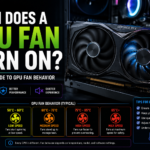
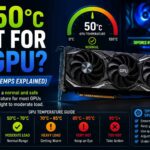
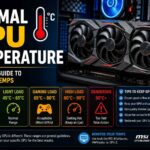
The single biggest factor is GPU core temperature. Every graphics card has a built-in fan curve — a programmed relationship between temperature and fan speed. Most modern cards are set to keep fans completely off until the core hits somewhere between 50°C and 60°C (122°F–140°F). Once that threshold is crossed, the fans spin up, usually starting slow and ramping as temperatures climb.
This threshold isn’t random. It’s set low enough to keep the card safe under load, but high enough that the card stays silent during everyday tasks like browsing, watching videos, or working in spreadsheets, where the GPU barely breaks a sweat.
Workload Intensity
Light tasks like web browsing or watching a YouTube video barely use the GPU, so temperatures stay low and fans often stay off entirely. Gaming, video rendering, or running benchmarks pushes the GPU much harder, generating heat quickly and triggering the fan curve almost immediately after the workload starts.
Power Draw and TDP
Higher power draw generates more heat, plain and simple. A GPU running at 70 percent of its power limit (TDP) during a less demanding game might never get hot enough to need fans. The same card running at full power limit during a demanding title will heat up fast and need active cooling almost right away. This is also why undervolting — reducing voltage while keeping performance similar — can delay fan activation, since it lowers heat output at a given clock speed.
Fan Curve Hysteresis
Most fan curves also include a small buffer, called hysteresis, so fans don’t rapidly cycle on and off when temperature hovers right at the threshold. Instead of turning on and off every few seconds, the fan waits a few extra degrees on the way down before shutting off again, keeping the switch smooth.
Ambient Room Temperature
The temperature of the room your PC sits in matters more than most people realize. A GPU idling in a 30°C (86°F) room during summer starts closer to the zero RPM threshold than the same card idling in a 20°C (68°F) room, so it will hit the fan activation point sooner under the exact same workload. This is why the same card can seem to behave differently between winter and summer, or between an air-conditioned office and a warm bedroom.
Understanding Zero RPM Mode
Zero RPM mode, sometimes called semi-passive cooling, is the feature responsible for most of the “my fans aren’t spinning” confusion. It allows the card to rely purely on the heatsink and passive heat dissipation while temperatures stay below a set threshold.
This isn’t a budget feature or something only found on cheap cards. It’s standard on most mid-range and flagship GPUs, from an RTX 4060 to a high-end Radeon RX 7900 series card. The heatsinks on modern cards are large enough to handle idle and light-load heat without any airflow at all, which means the card runs completely silent during everyday use.
Once the temperature crosses the threshold, usually somewhere in the 50–60°C range, the fans spin up and the card transitions out of passive mode. This switch is usually smooth and not something you’ll consciously notice unless you’re watching the card while it happens.
GPU Fan Curves Explained
A fan curve is essentially a chart that maps temperature to fan speed (measured in RPM, or as a percentage of maximum PWM duty cycle). Manufacturers configure a default curve before the card ships, balancing two competing priorities: keeping the card cool and keeping it quiet.
A typical default curve might look something like this:
| Temperature | Fan Behavior |
|---|---|
| Below 50–60°C | Fans off (zero RPM mode) |
| 60–70°C | Fans spin at low to moderate speed |
| 70–80°C | Fans ramp up noticeably |
| 80°C and above | Fans run at higher speeds to prevent thermal throttling |
These numbers vary by manufacturer, cooler design, and heatsink size, since a larger cooler needs less aggressive fan ramping to stay within safe temperature limits. If the card can’t shed heat fast enough, it will hit its thermal limit and throttle — reducing clock speed to protect itself — which is exactly what an aggressive fan curve is designed to prevent.
PWM vs DC Fan Control
Most modern GPU fans use PWM (pulse-width modulation) control, which switches power on and off rapidly to set speed with fine precision — this is what makes smooth, gradual ramping and true zero RPM mode possible. Older or budget cards sometimes use simpler DC (voltage-based) control, which is less precise and can make fans feel like they jump between speeds rather than ramping smoothly.
Idle vs Load Fan Behavior
At Idle
During idle, your GPU is doing very little work. Desktop usage, document editing, and casual browsing keep power draw and temperatures low enough that most cards never need to spin their fans at all. This is intentional and contributes to a quieter overall system.
Under Light Load
Light gaming, video playback, or basic multitasking might push temperatures just over the zero RPM threshold, especially in cases with limited airflow. You might hear a faint, low-speed fan hum during these tasks.
Under Heavy Load
Demanding games, 3D rendering, or extended benchmarking runs will reliably trigger fans, often ramping them up within the first minute or two of sustained use. This is completely normal and exactly how the card is designed to behave.
Does This Apply to Laptop GPUs Too?
Laptop GPUs follow the same core logic — temperature thresholds, fan curves, and thermal throttling all still apply — but the details differ. Laptops rarely use true zero RPM mode because cramped chassis airflow and shared cooling with the CPU mean fans often spin at a low idle speed instead of stopping completely. Laptop fan curves also tend to be more aggressive at lower temperatures since there’s less thermal headroom before throttling kicks in.
Case Airflow’s Effect on Fan Activation
Your case isn’t just about fitting components — it directly affects when your GPU fans turn on and how hard they need to work. A case with poor airflow traps heat near the GPU, causing it to reach the fan activation threshold faster and stay at higher fan speeds longer than it would in a well-ventilated case.
If you notice your GPU fans turning on earlier than expected, or ramping up more aggressively than you’d see in reviews and benchmarks for the same card, case airflow is one of the first things worth checking. Adding intake or exhaust fans, improving cable management, or repositioning components can lower ambient temperature around the GPU and delay fan activation.
How to Check Your GPU’s Fan Curve
Using Manufacturer Software
Most GPU manufacturers offer their own monitoring and control software that displays the current fan curve, temperature, and fan speed in real time. NVIDIA’s app, AMD Software: Adrenalin Edition, and board-partner tools like ASUS GPU Tweak all let you view the default curve and confirm it’s behaving as expected.
Using Third-Party Monitoring Tools
Programs like GPU-Z or HWiNFO let you monitor temperature and fan speed simultaneously, which is useful for confirming exactly what temperature your fans kick in at. Running one of these tools while gradually loading your GPU with a game or benchmark gives you a clear picture of your card’s real-world fan behavior.
Reading the Manual or Spec Sheet
Some manufacturers list the zero RPM threshold and fan curve details directly in the product manual or spec sheet, particularly for higher-end cards marketed around their quiet idle performance.
Signs of Normal vs Abnormal Fan Behavior
Normal behavior: Fans staying off during idle and light browsing, fans spinning up within the first minute of gaming, and fan speed gradually increasing as temperature rises.
Signs worth investigating: If your GPU fans never turn on even during intense gaming sessions, or if temperatures climb well past 80°C without any fan response, that’s a sign something might be wrong — whether it’s a software issue, outdated drivers, or a genuine hardware fault. Similarly, fans that spin constantly at high speed even at idle, especially on a card with zero RPM mode, can indicate dust buildup, a failing fan bearing, or a stuck setting in the control software.
Quick troubleshooting steps if fan behavior looks abnormal:
- Update or reinstall your GPU driver, since corrupted drivers can misreport temperature or ignore the fan curve.
- Reset the fan curve to default in your manufacturer software, in case a custom curve was left misconfigured.
- Open the case and check for dust buildup on the fan blades and heatsink fins.
- Monitor temperature and fan RPM together with GPU-Z or HWiNFO to confirm whether the fan is actually responding to heat.
- If fans stay silent past 85°C or spin at 100% constantly with no load, treat it as a hardware issue and consider contacting the manufacturer’s support.
Can You Manually Control When GPU Fans Turn On?
Yes. Most manufacturer software and third-party tools like MSI Afterburner allow you to create a custom fan curve. You can lower the temperature threshold so fans spin up earlier for more aggressive cooling, or raise it for a quieter experience at the cost of slightly higher temperatures. You can also disable zero RPM mode entirely if you’d rather have fans spinning continuously at a low speed instead of cycling on and off.
Common Misconceptions About GPU Fan Activation
A common myth is that fans not spinning means the card is broken. In reality, this is expected behavior for the vast majority of modern GPUs at idle. Another misconception is that all cards use the same temperature threshold for fan activation.
Thresholds vary by manufacturer, cooler design, and even firmware or BIOS revisions, so two cards with the same chip (for example, two different RTX 4070 models from different board partners) can behave differently. Some people also assume a louder fan means better cooling, when in reality, well-designed coolers with larger heatsinks and heat pipes can keep temperatures controlled without needing aggressive fan speeds.
Conclusion
GPU fan behavior isn’t random — it’s a carefully engineered balance between cooling performance and noise. Zero RPM mode keeps your card silent during everyday tasks, while built-in fan curves ensure cooling ramps up exactly when your GPU needs it under load. Understanding your card’s temperature thresholds, recognizing normal versus abnormal patterns, and knowing how to check or adjust your fan curve puts you in full control of your system’s thermal performance. Once you know what to expect, that quiet idle GPU stops looking like a problem and starts looking like good engineering doing exactly what it’s supposed to do.
FAQs
Why are my GPU fans not spinning at idle? This is completely normal on modern graphics cards with zero RPM technology. The fans remain off during light workloads and only start spinning once the GPU reaches a predefined temperature, typically between 50°C and 60°C.
At what temperature do GPU fans usually turn on? Most GPUs activate their cooling fans when temperatures reach around 50°C to 60°C (122°F–140°F). However, the exact threshold varies depending on the manufacturer, model, and fan curve settings.
Is it bad if my GPU fans never turn off? Not necessarily. Some graphics cards are configured to keep fans running continuously at a low speed rather than using a zero RPM mode. This behavior is normal and depends on the card’s cooling profile.
Can I change when my GPU fans turn on? Yes. Tools such as MSI Afterburner, ASUS GPU Tweak, and NVIDIA/AMD’s own software allow you to customize the fan curve and adjust the temperature at which the fans begin spinning.
Does case airflow affect GPU fan behavior? Poor airflow can cause heat to build up inside the case, leading GPU fans to start earlier and spin faster. A well-ventilated case helps maintain lower temperatures and quieter fan operation.
What is zero RPM mode on a GPU? Zero RPM mode is a feature that stops GPU fans completely during low-temperature and low-load conditions. This reduces noise and extends fan lifespan while maintaining safe operating temperatures.
Should my GPU fans spin all the time? Not necessarily. Many modern GPUs are designed to stop their fans during idle or light workloads. Continuous fan operation is also normal on certain models or custom fan configurations.
Why do my GPU fans turn on and off repeatedly? This often happens when the GPU temperature fluctuates around the fan activation threshold. Adjusting the fan curve, improving case airflow, or relying on the fan curve’s built-in hysteresis buffer can help reduce frequent fan cycling.
Can GPU fans be controlled manually? Yes. Most graphics cards support manual fan control through software, allowing you to set custom fan speeds, temperature targets, and cooling profiles based on your performance and noise preferences.
Do GPU fans affect gaming performance? Indirectly, yes. Proper fan operation keeps GPU temperatures under control, preventing thermal throttling and helping the graphics card maintain its maximum performance during gaming sessions.