
No, GPU fans do not always spin. Most modern graphics cards use zero-RPM (fan-stop) mode, so the fans stay off at idle and start once the GPU warms up, often somewhere around 50 to 60°C depending on the model. Fans that are off on a cool card are normal. Fans that are off on a hot card are a fault.
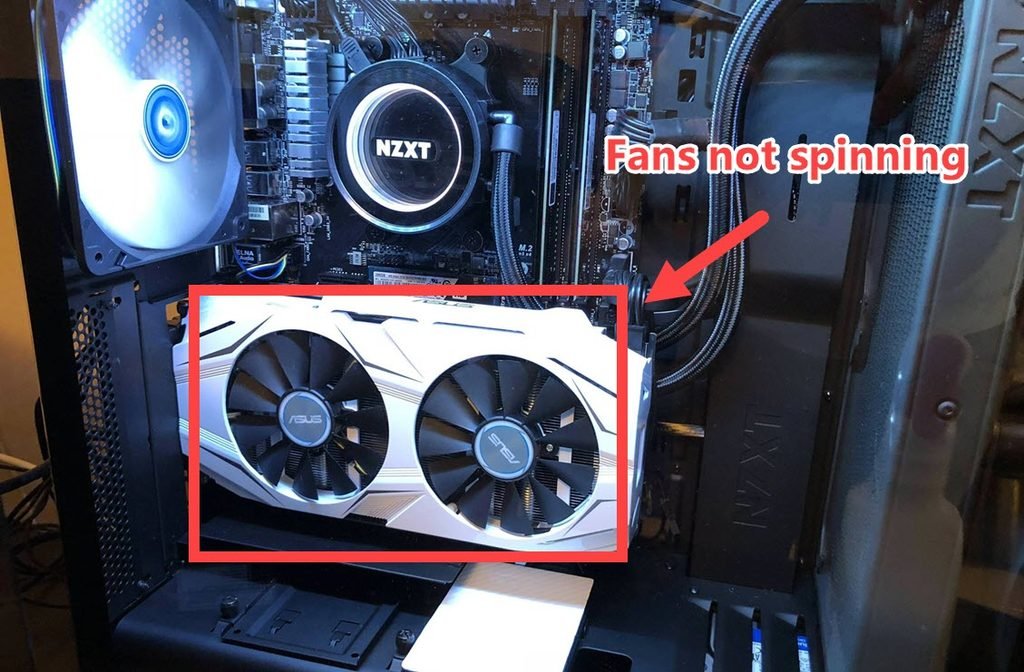
You power on your PC, the RGB lights up, Windows loads, and you glance at your graphics card. The fans aren’t moving. Maybe you’re just browsing or watching a video, and the card looks completely dead. That’s usually the moment people start searching for answers, and usually the moment they assume something is broken.
Here’s the good news: in most cases, nothing is wrong. Plenty of modern graphics cards are designed to keep their fans off until the GPU actually needs cooling. But “usually fine” isn’t the same as “always fine,” and there are a few situations where a motionless fan really does signal trouble. This guide walks through both sides, so you can tell the difference without guessing.
By the GPUSPOINT team · Last updated November 8, 2026
So, Do GPU Fans Always Spin?
No. On most current graphics cards from NVIDIA and AMD board partners, the fans do not spin all the time. When the GPU is idle or doing light work, like web browsing, email, or playing a video, the card can stay cool using only its heatsink. In that state the fans stay off completely, and that behavior is by design.
Older cards, and some budget or compact models, still run their fans continuously, even if slowly. So the honest answer is: it depends on the specific card, its firmware (VBIOS), and the fan curve the manufacturer chose.
The real question isn’t “are my fans spinning right now?” It’s “are my fans spinning when they should be?” If the GPU is hot and the fans are still off, that’s a problem. If the GPU is cool and the fans are off, that’s normal.
Key Takeaways
- Zero-RPM mode is a deliberate design feature on many cards from board partners such as ASUS, MSI, Gigabyte, and Zotac.
- Watch GPU temperature, not fan movement. Tools like GPU-Z, HWiNFO, and MSI Afterburner show both.
- 90% GPU usage while gaming is normal. A GPU temperature that stays near 90°C deserves a closer look.
- RTX 3060 behavior depends on the exact model, and NVIDIA never made a Founders Edition of that card.
- The NVIDIA Control Panel has no fan slider on most GeForce cards. Use Afterburner, your brand’s utility, or the NVIDIA app where supported.
- Fans that stay off while the GPU is hot are never normal.
GPU Fan Behavior at a Glance
| Situation | Is it normal? | What to do |
|---|---|---|
| Fans off at idle, GPU cool | Yes, on zero-RPM cards | Nothing |
| Fans spin briefly at boot, then stop | Yes | Nothing |
| Fans start and stop repeatedly during light use | Usually harmless | Set a low constant fan speed if it bothers you |
| One of three fans off at idle | Can be by design | Check the manual, then test under load |
| One fan off under load while the others spin | No | Check for obstructions, dust, or a loose connector, then contact the maker |
| Fans off while the GPU is hot | No | Stop the load, check temperatures, reseat cables, test another system |
| Black screen and no fan movement at power-on | Not conclusive | Check PCIe power, reseat the card, test the monitor cable and another PC |
| Fans at maximum speed all the time | Not normal | Check dust, case airflow, and any fan profile set in software |
Why Some GPU Fans Stop Spinning on Purpose
Zero-RPM mode is a cooling feature that keeps a graphics card’s fans completely off while the GPU is cool, then starts them once the temperature passes a threshold stored in the card’s VBIOS. You’ll also see it called 0dB mode, semi-passive cooling, or fan-stop mode. The idea is simple: if the card isn’t generating much heat, why make noise?
Board partners each brand it differently. ASUS calls it 0dB technology, MSI uses Zero Frozr, Zotac uses FREEZE fan stop, and Gigabyte has its own fan-stop behavior tied into its “3D Active Fan” branding. Different names, same concept.
There are a few real benefits to this approach:
- Silence. At idle, your PC can be nearly silent if your CPU cooler and case fans are also running slowly.
- Less wear on the fans. A fan that isn’t turning isn’t wearing its bearings. Modern fans last a long time either way, but there’s no reason to run them when they aren’t needed.
- Less dust movement. Fans pull air through the heatsink, and that air carries dust. Fewer spinning hours means a little less dust drawn into the fins.
The tradeoff is that a card sitting in a hot, cramped case may sit at a warmer idle temperature than one with fans always on. For most people that’s not an issue. Idle temperatures on a card with a big heatsink are typically well within safe limits.
When Do GPU Fans Start Spinning?
GPU fans start spinning when the core temperature crosses a threshold set in the card’s firmware. That threshold differs between models, so there isn’t one universal number. On many partner cards, it tends to land somewhere around the 50 to 60°C range, but check your own card’s behavior rather than trusting a generic figure.
Here is what usually happens in practice:
- At boot. Many cards spin their fans briefly during startup, then stop once the system reaches the desktop and temperatures look fine.
- At idle. If the temperature stays below the fan-start threshold, the fans stay off.
- When you launch a game or heavy app. The GPU draws more power, heats up quickly, and the fans kick in, often within seconds to a minute.
- When you close the game. The fans keep running until the temperature falls below a lower threshold, then stop. Manufacturers add this gap (called hysteresis) so the fans don’t turn on and off repeatedly.
If you hear the fans ramp up shortly after starting a game and then settle at a steady speed, that’s the system doing its job.
What Controls the Fan Curve?
The fan curve is a mapping between GPU temperature and fan speed. It’s stored in the card’s VBIOS, and the driver follows it automatically. Cooler designs differ a lot: a large triple-fan card can keep temperatures low at a slow, quiet speed, while a small dual-fan card may need to spin faster to reach the same result. That’s why two cards with the same GPU chip can behave very differently.
Some cards also have a dual BIOS switch. One setting is often a quieter profile and the other is a performance profile with more aggressive fans. If you flipped that switch at some point and forgot, it could explain why your fans behave differently than a friend’s identical card.
Is It Normal for GPU Fans Not to Always Spin?
Yes, as long as the temperature is low and the card is behaving normally under load. This is one of the most common questions new PC builders ask, and it’s one of the most common false alarms.
A fan that’s not spinning is normal when:
- The PC is idle or running light tasks
- GPU temperature is low (you can check this in software, covered below)
- The fans start up once you put the card under load
- Your card is a model known for zero-RPM behavior
A fan that’s not spinning is a problem when:
- The GPU is hot (for example, during a game) and the fans stay still
- Your screen shows artifacts, crashes, or sudden frame rate drops
- You get error messages or the driver resets
- You hear clicking, grinding, or a fan that tries to start and stalls
Should My GPU Fans Always Spin?
Not necessarily. If your card is designed with fan-stop mode and your temperatures are healthy, letting the fans rest at idle is fine. There’s no meaningful benefit to forcing them on all the time for most users.
That said, some people prefer constant airflow. If your case has weak airflow, or you use a compact build with the GPU close to other components, a low constant fan speed can help prevent heat from building up around the card. You can set that up yourself (see the section on turning fans on below).
The point is to match your setup. A well-ventilated tower with a high-airflow front panel doesn’t need the same approach as a small form factor build packed tightly with hardware.
Do RTX 3060 Fans Always Spin?
It depends on the model, since the RTX 3060 was sold by many board partners and each designed its own cooler and fan curve. NVIDIA did not make a Founders Edition of the RTX 3060, so every version you can buy comes from a partner brand.
Many dual-fan and triple-fan RTX 3060 models from brands like ASUS, MSI, Gigabyte, Zotac, and others use a fan-stop feature at low temperatures. Those cards will sit silent at idle and spin up under load. Some smaller or cheaper single-fan versions may run their fan continuously instead.
If you own an RTX 3060, the easiest way to know is to check the product page for your exact model and look for terms like 0dB, Zero Frozr, or fan stop. You can also watch fan RPM in monitoring software while the PC idles. If RPM reads 0 at low temperatures and rises when you game, you have a zero-RPM card working as intended.
How to Check Whether Your GPU Fans Are Working
Don’t rely only on your eyes. A quick look through a case window shows whether the fans are moving at that moment, but it can’t tell you whether they’re behaving correctly. Use software instead.
Monitoring tools you can use
- GPU-Z shows temperature, fan speed (in RPM and percent), clock speeds, and power draw in the Sensors tab.
- MSI Afterburner works with cards from any brand, not only MSI, and can display live fan speed and temperature on screen while you play.
- HWiNFO gives very detailed sensor readings, useful when you want to track several things at once.
- Windows Task Manager shows GPU temperature on the Performance tab for dedicated cards on newer Windows versions.
A simple test
- Open a monitoring tool and note the idle temperature and fan speed.
- Launch a demanding game or a GPU stress test.
- Watch the temperature climb. The fans should spin up as it rises.
- After a few minutes, check that the temperature has stabilized and the fan speed looks reasonable.
- Close the test and see whether the fans slow down and eventually stop again (if your card supports that).
If the temperature keeps rising while fan RPM remains at zero, stop the test right away. That’s a sign of a real issue.
Is Running a GPU at 90% Bad?
This question mixes up two different numbers, so let’s separate them.
GPU usage (utilization) at 90% or higher is completely normal during gaming. It means the GPU is being used efficiently and your game isn’t being held back by the CPU. In fact, if you want high frame rates in a demanding title, you want the GPU working hard. Sitting at 99% usage in a modern game is common and not harmful on its own.
GPU temperature at 90°C is a different matter. Temperature limits depend on the specific GPU and cooler, so check the specifications for your model. Many cards begin to throttle (lower clock speeds to protect themselves) in the 80s, and some can run in the high 80s or 90s by design. But if your card regularly sits that high and you didn’t expect it, something may be off. Common causes include dust, poor case airflow, an overly quiet fan curve, or worn thermal paste or pads on an older card.
So: running at 90% usage is fine. Running at 90°C deserves a closer look, especially if the card used to run cooler.
GPU Fans Not Spinning and No Display
This is the scary version of the problem. You turn on the PC, the fans don’t spin, and the screen stays black. Before assuming the GPU is dead, remember two things. First, fans being off at idle is normal on many cards. Second, a black screen has many possible causes that have nothing to do with fans.
Work through these checks in order:
- Check where your monitor is plugged in. The cable must go into the graphics card’s ports, not the motherboard’s video output, unless you’re deliberately using integrated graphics.
- Check the power connectors. Most mid-range and high-end cards need one or more PCIe power cables from the power supply. A loose or missing cable can stop the card from starting. Press the connectors in firmly until they click.
- Reseat the card. Turn off the PC, unplug it, and take the card out of the PCIe slot and put it back in. Make sure it sits fully and that the retention clip is locked.
- Look for LEDs and fan movement at power-on. Many cards give a short fan spin or light up at startup. If you see nothing at all, power delivery may be the problem.
- Try another cable and another monitor input. A faulty HDMI or DisplayPort cable can look exactly like a dead card.
- Test with another PC or another GPU if you can. This is the clearest way to see whether the card itself has failed.
- Check your power supply. An underpowered or failing PSU can stop a card from working or make the system shut down when the GPU loads.
If the system shows no signs of life with the card installed but boots normally with it removed, and you’ve tried the steps above, the card may be defective. If it’s under warranty, contact the seller or manufacturer rather than trying repairs yourself.
Third GPU Fan Not Spinning: What’s Going On?
Cards with three fans sometimes show one fan, often the third, sitting still while the other two spin. There are a few possible explanations, and not all are bad.
It might be by design. Some triple-fan coolers are built so the outer fans handle low heat loads, and additional fans join in as temperatures climb. That means one fan idling while two spin can be a feature. Check your card’s manual or product page to see whether it mentions independent fan control.
The fan may be obstructed. A cable, a zip tie, or a loose strap can brush a fan blade and stop it. Turn the PC off and look inside carefully.
Dust or debris can jam it. Over time, dust builds up on the blades and bearings. A gentle clean with compressed air (holding the fan still so it doesn’t over-spin) can free it.
The fan may have failed. If you spin it gently by hand with the power off and it feels rough, gritty, or won’t turn freely, the bearing could be worn. Some manufacturers offer replacement fans or repair service for cards still under warranty.
A cable or header may be loose. On some designs, fans connect to the card’s PCB through small cables. If one has come loose during shipping or handling, that fan won’t run.
To find out which category you’re in, use monitoring software and push the card with a heavy workload. If the third fan stays off even at high temperatures, that’s not normal and it’s worth contacting the manufacturer.
How to Turn On GPU Fans on NVIDIA Cards
If you’d like your NVIDIA card’s fans to run all the time, or if you want more aggressive cooling than the default fan curve provides, you can set that up yourself. Keep in mind that the NVIDIA Control Panel itself doesn’t include a manual fan speed slider for most GeForce cards, so you’ll need another tool.
Option 1: MSI Afterburner (works with most brands)
- Download and install MSI Afterburner from MSI’s official website.
- Open it and go to Settings, then the Fan tab.
- Enable user-defined software automatic fan control.
- Adjust the curve so the fan runs at a low percentage even at low temperatures, instead of dropping to zero.
- Apply the changes and set Afterburner to launch with Windows so the profile loads at startup.
Some cards enforce a minimum fan speed and won’t let you set it lower, and some won’t let a fan-stop card run below a certain level in software. That’s normal.
Option 2: The manufacturer’s own utility
Many brands provide their own software, such as ASUS GPU Tweak, MSI Center, Gigabyte Control Center, or Zotac FireStorm. These often include a simple switch to turn off the zero-fan mode or choose a quiet, balanced, or performance profile. If you want the fewest moving parts, this is often the easiest path.
Option 3: NVIDIA’s own app
The NVIDIA app has a Performance section with tuning controls on supported cards, and on some GPUs and driver versions that includes a fan speed target. The available options vary, so check what your install shows. Check what your installed version offers. For many people, Afterburner or the brand’s utility still gives more direct fan control.
Option 4: Linux users
On Linux, fan control for NVIDIA cards typically requires enabling Coolbits in the X configuration and then using nvidia-settings or related tools. The exact method depends on your distribution and display setup, so follow NVIDIA’s documentation for your driver version.
Before you change anything
A few cautions are worth keeping in mind. Don’t set a fan curve that stays low when the card is hot. Always test with a game or stress test after changing settings. And if you aren’t comfortable adjusting fan behavior, the default curve is designed by engineers who tested that exact cooler, so it’s a safe starting point.
Should You Force Your Fans to Run All the Time?
For most people, no. Zero-RPM mode is a good feature, and leaving it on is a sensible default. But there are cases where always-on fans make sense:
- Compact or poorly ventilated cases, where heat can build around the GPU even at idle.
- Hot climates or warm rooms, where ambient temperature is already high.
- People who dislike the on-off cycle. Some users find the sudden fan start distracting, especially if temperatures hover near the threshold. A low, steady fan speed removes that effect.
- Cards that run close to the fan-start threshold at idle, causing fans to stop and start repeatedly.
A slow constant fan speed is nearly inaudible on many modern coolers, so you give up very little in noise. The tradeoff is a bit more fan wear and more dust moving through the heatsink, which you can manage with regular cleaning.
Common Reasons GPU Fans Behave Strangely
If your fans seem off, these are the usual suspects:
- Zero-RPM mode working normally. The most common cause, and no action is needed.
- A different BIOS profile. If your card has a dual BIOS switch, check its position.
- Software conflicts. Having several fan control tools running at once, like Afterburner and a manufacturer utility, can cause them to fight each other. Use only one.
- Driver glitches. A clean driver reinstall can sometimes fix odd behavior after an update.
- Dust and debris. Clean the card and the case filters on a regular schedule.
- Hardware failure. A dead fan motor or damaged connector needs repair or replacement.
Keeping Your GPU Cool in the Long Run
Whether your fans spin all the time or not, good airflow matters more than any single setting. A few habits go a long way:
- Keep intake and exhaust fans balanced so air moves through the case instead of stagnating.
- Clean dust filters and the card’s heatsink every few months, depending on your environment.
- Leave a little space around the card, especially if you use multiple GPUs or large add-in cards.
- Check that your case has enough clearance for the card’s cooler.
- Monitor temperatures after any major hardware or driver change.
- If an older card starts running hotter than it used to, consider fresh thermal paste or pads, but only if you’re comfortable doing it or can use a qualified technician, since opening a card may void warranty.
Frequently Asked Questions
Is it normal for GPU fans to not always spin?
Yes. Many modern graphics cards use a zero-RPM or fan-stop mode, which keeps the fans off while the GPU is idle or lightly loaded. The fans start up automatically once the temperature rises past a set point. If the card is cool and the fans start properly under load, there’s nothing to worry about.
Should my GPU fans always spin?
They don’t need to. If your card supports fan-stop mode and runs at healthy temperatures, it’s perfectly fine for the fans to rest. If you prefer constant airflow or your case runs warm, you can set a low continuous fan speed using Afterburner or your manufacturer’s software.
Do RTX 3060 fans always spin?
Not on every model. Different board partners built their own RTX 3060 coolers, and many of them stop the fans at low temperatures. Some compact or budget variants keep the fan running all the time. Check your exact model’s specs or watch the fan RPM in monitoring software at idle.
Is running a GPU at 90% bad?
GPU usage at 90% or higher while gaming is normal and not harmful. What you should watch is temperature, not utilization. If your GPU temperature stays unusually high or the card throttles, look at airflow, dust, and fan behavior.
When do GPU fans start spinning?
They start when the GPU core reaches a temperature threshold programmed into the card’s firmware. That point varies by model and brand, and on many partner cards it falls roughly between 50 and 60°C. Fans also commonly spin for a moment at boot and ramp up when you launch a game or other heavy workload.
Why are my GPU fans not spinning and there is no display?
Fans staying off is not the cause of a black screen by itself. Check that your monitor cable is connected to the graphics card, make sure all PCIe power cables are fully seated, and reseat the card in its slot. Test with a different cable or monitor input too. If nothing works, the card or the power supply could be faulty and should be tested in another system.
Why is my third GPU fan not spinning?
It could be intentional if the cooler is designed to use fewer fans at low loads. It could also be blocked by a cable, jammed by dust, disconnected, or failed. Run a stress test and watch temperatures. If the fan stays off while the GPU is hot, contact the manufacturer or arrange a repair.
How do I turn on GPU fans on NVIDIA cards?
The NVIDIA Control Panel doesn’t offer a fan slider for most GeForce cards, so use a tool like MSI Afterburner or your card brand’s own software. Create a custom fan curve, or disable zero-RPM mode if your utility offers that option. Save the profile and test it under load.
Can GPU fans stop spinning while gaming?
They shouldn’t. If your fans stop during a game while temperatures climb, something is wrong, and you should pause gaming to avoid overheating. Possible causes include a software conflict, a failed fan, a loose connection, or a driver problem.
Is it bad if my GPU fans spin at full speed all the time?
It’s not harmful in the short term, but it’s a sign to investigate. A fan constantly at high speed usually means the GPU is hot, the fan curve is set aggressively, or airflow in the case is poor. Check for dust, review your fan settings, and make sure case ventilation is adequate.
Should I clean my GPU if the fans make noise?
If the noise is rattling or whirring from dust buildup, a careful cleaning with compressed air can help. Power the PC off first, hold the fan blades still while you blow air, and avoid using a vacuum, which can generate static. If the noise is grinding or clicking, the fan bearing may be failing and the fan may need replacing.
What is zero-RPM mode on a GPU?
Zero-RPM mode, also called 0dB mode, semi-passive cooling, or fan-stop, keeps the fans fully off while the card is cool and starts them when temperature passes a threshold set in the VBIOS. It cuts idle noise. Board partners use their own names for it, such as ASUS 0dB, MSI Zero Frozr, and Zotac FREEZE.
Why do my GPU fans keep spinning up and stopping?
This usually happens when the GPU hovers near the fan-start temperature during light work like browsing, video playback, or background tasks. The fans start, cool the card a little, then stop again. It’s normally harmless. To stop the cycling, set a low constant fan speed in Afterburner or your brand’s utility, improve case airflow, or close apps that keep the GPU busy in the background.
Final Thoughts
So, do GPU fans always spin? Not anymore, and that’s a good thing for most users. A silent idle is a feature, not a fault. What matters is that the fans wake up when the card heats up, that your temperatures stay sensible under load, and that you don’t hear any grinding or see any warning signs.
If you stay aware of your card’s behavior, check the temperatures when you play, and clean it now and then, you’ll catch problems early. And if something really does look wrong, follow the troubleshooting steps above before assuming the worst. Most of the time, the answer is simpler than it looks.
