


You open your PC, launch a game or maybe just a browser, and your GPU immediately redlines. Fans go loud. Everything stutters. Task Manager shows 100% GPU usage and you haven’t even done anything demanding yet. Frustrating doesn’t begin to cover it.
Here’s the thing: a GPU hitting 100% isn’t always a disaster. It becomes one when it happens at the wrong time, for the wrong reasons, and keeps repeating. This guide is going to walk you through every real cause behind those spikes, what’s actually happening inside your system when they occur, and how to address each one without guesswork.
When 100% GPU Usage Is Normal and When It Isn’t
Not every spike is a problem. Your GPU is built to work hard; that’s the entire point of it. When you’re running a graphically intensive game at high settings, doing 4K video exports, or training a machine learning model, seeing 100% usage means your hardware is doing its job correctly. That’s peak performance, not a red flag.
The red flag is when your GPU maxes out while you’re watching a YouTube video, idling on the desktop, or alt-tabbing between two lightweight windows. That’s when something else is going on, either a software conflict, a thermal issue, a background process that shouldn’t be there, or hardware behaving outside its normal operating range. Context is everything when diagnosing GPU spikes.
Your Graphics Settings Are Asking Too Much
The most overlooked cause of persistent 100% GPU usage is also the simplest: your settings are just too high for your hardware. Modern games have incredibly aggressive default presets. If your GPU isn’t powerful enough to sustain those settings at your target frame rate, it will constantly run at capacity trying to keep up, and the result is stuttering and frame dips that feel like something is broken, even though technically nothing is.
Dropping from Ultra to High, or capping your frame rate to match your monitor’s refresh rate instead of running uncapped, can eliminate the problem. An uncapped frame rate means your GPU is rendering as many frames as physically possible, which means it’s always at full load. Capping it at 60 fps or 144 fps, depending on your monitor, gives the GPU breathing room, and in many games, you won’t notice any visual difference at all.
Outdated or Broken GPU Drivers Are a Silent Troublemaker
GPU drivers are the software layer that allows your operating system to communicate with your graphics card. When that layer is outdated, partially corrupted, or mismatched with your current Windows version, your GPU can behave erratically, including spiking to full load without reason.
Driver issues are particularly sneaky because they don’t always throw obvious errors. Instead, you just get unstable performance that looks like a hardware problem. NVIDIA and AMD release driver updates constantly, and those updates often include stability patches specifically for usage spikes and power management bugs.
The right way to update drivers isn’t just clicking Update in Device Manager. Download the latest driver directly from the NVIDIA or AMD website, then use Display Driver Uninstaller (DDU) in Safe Mode to completely wipe the old driver before installing the new one. A clean install removes all the corrupted registry entries and leftover files that a standard update leaves behind. It takes an extra ten minutes and often solves problems that months of troubleshooting couldn’t touch.
Background Apps Are Quietly Eating Your GPU
Your PC is rarely doing just one thing at a time, even when it looks idle. Game launchers auto-update in the background. Cloud storage services sync files. Browsers keep background tabs alive. Streaming apps like Discord run hardware-accelerated overlays. Antivirus tools run scheduled scans. All of these can generate GPU load in the background without ever appearing on your screen.
Open Task Manager, click the GPU column to sort processes by GPU usage, and actually look at what’s running. You’ll often find something unexpected at the top of that list. Browser tabs with video content, even when minimized, are common offenders because most browsers use GPU acceleration for video decoding by default. Close what you don’t need, disable GPU-accelerated features in apps that don’t require them, and remove programs from the startup list that have no reason to launch with Windows.
Cryptojacking and Malware Hijacking Your GPU
This is the one people least expect but should check for early. A category of malware called cryptojackers is specifically designed to steal your GPU’s computing power and use it to mine cryptocurrency, with all the profits going to someone else. The malware is built to be quiet. No pop-ups, no obvious signs. Just your GPU running hot, your performance suffering, and your electricity bill slightly higher than it should be.
The tell-tale pattern is GPU usage spiking heavily while you’re not actively doing anything demanding, paired with elevated temperatures and sustained fan noise. Open Task Manager and look for any process you don’t recognize consuming significant GPU resources. Right-click it, search the process name online, and verify what it actually is before closing it. Then run a full system scan with Malwarebytes; the free version is perfectly capable of catching cryptominers that standard Windows Defender might miss. This step takes fifteen minutes and should be part of any GPU spike diagnosis.
Overheating Is Causing Your GPU to Behave Erratically
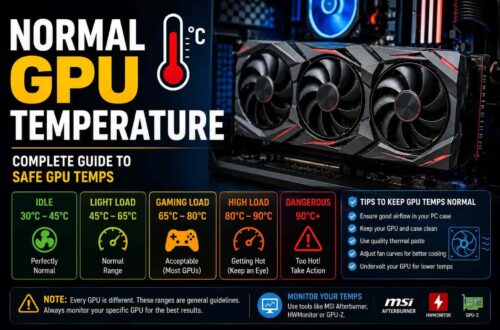
Heat is one of the most direct causes of abnormal GPU behavior, including sudden usage spikes. When a GPU approaches its thermal limit, it begins throttling, reducing its performance to protect itself from damage. But the way throttling interacts with game engines and monitoring software can sometimes register as a spike rather than a drop, and the resulting instability manifests as stutters, frame drops, and erratic usage readings.
If you haven’t cleaned your PC in several months, dust buildup on the heatsink fins is almost certainly restricting airflow. A can of compressed air directed at the GPU’s cooling fins can recover several degrees of operating temperature and genuinely change how the card performs under load. Also check that your case has good airflow; hot air exhausted from the GPU needs somewhere to go. Blocked or inadequate case ventilation forces the card to work harder and run hotter, which creates a performance loop that only gets worse over time.
Overclocking Instability You Might Have Forgotten About
If you applied an overclock to your GPU at some point, either manually through MSI Afterburner or via a preset profile, and then mostly forgot about it, that overclock could be the source of your spikes. An unstable overclock doesn’t always crash your system outright. Sometimes it causes intermittent instability that shows up as usage spikes, micro-stutters, or random performance drops under specific conditions.
Revert your GPU to its stock clock speeds, run your system for a day, and see if the spikes disappear. If they do, your overclock was the problem. You can then approach overclocking more methodically, raising clocks in small increments and stress testing at each step, rather than running a profile that pushes the card beyond a stable point.
Power Settings and Hardware Acceleration Are Easy Wins
Two quick settings that most people never touch can have a real impact on GPU spike behavior. First, check your Windows power plan. If it’s set to High Performance, your GPU may be forced into its maximum performance state even when it has nothing to do, causing it to spike reactively when any small task comes in. Switching to Balanced allows the GPU to scale its clock speed up and down naturally based on actual demand.
Second, hardware acceleration. Most modern apps, browsers, Discord, Spotify and even some PDF viewers use your GPU to accelerate their rendering. Individually, this is fine, but if ten background apps are all pushing small GPU tasks simultaneously, the cumulative load adds up. Disabling hardware acceleration in your browser and in apps you don’t need it for takes two minutes per app and can meaningfully reduce background GPU pressure.
FAQs
Is a GPU running at 100% going to damage it?
Not in the short term. GPUs are designed to operate at full load during demanding tasks like gaming, rendering, and AI workloads. The real concern is prolonged high usage combined with excessive temperatures. If your GPU consistently runs at 90°C or higher for extended periods, long-term wear can increase. As long as temperatures remain within safe limits, 100% GPU usage alone is not harmful.
Why does my GPU spike even when I’m just browsing?
Modern web browsers use GPU acceleration to improve performance when rendering web pages, playing videos, and displaying animations. Websites with video content, complex graphics, or heavy JavaScript can temporarily increase GPU usage. If these spikes are bothersome, you can disable hardware acceleration in your browser settings, typically found under the Advanced or System section.
How do I know if malware is causing my GPU spikes?
Unexpected GPU activity while your computer is idle can sometimes indicate malware, particularly cryptojacking software that secretly uses your hardware to mine cryptocurrency. Signs include unusually high GPU usage, increased temperatures, and louder fan noise without any demanding applications running. Check Task Manager for unfamiliar processes and run a thorough scan with a trusted anti-malware tool to identify potential threats.
What’s the best free tool to monitor GPU usage?
MSI Afterburner is one of the most widely used and trusted GPU monitoring tools. It provides real-time information on GPU usage, temperature, clock speeds, memory consumption, and fan performance. It also supports an on-screen display, allowing you to monitor system performance while gaming or running other applications.
Should I reinstall my GPU drivers even if they seem fine?
Yes. Driver-related issues do not always produce obvious errors and can sometimes cause unexplained GPU usage spikes, performance inconsistencies, or stability problems. Performing a clean driver reinstall can resolve many hidden issues. For the best results, remove existing drivers completely before installing the latest version from your GPU manufacturer’s official website.