

Your GPU fans sitting perfectly still is not a sign something is broken. In most cases it means your graphics card is doing exactly what it was built to do.
Nearly every modern GPU ships with Zero RPM mode. During light tasks like browsing or streaming, the card stays cool through its heatsink alone. Spinning fans when they are not needed only adds noise and wear, so the card simply keeps them off.
Nvidia calls it 0dB Technology. AMD calls it Semi-passive mode. Different names, same idea: fans off when cool, fans on when needed.
How GPU Cooling Actually Works
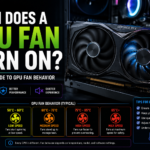
Your GPU uses a fan curve, a set of instructions telling the fans how fast to spin based on temperature. At low temps, fans stay off. As the GPU warms up, they start slowly. Push the card harder and they spin faster. This happens automatically in the background.
What Triggers the Fans to Start?
Fans kick on once the GPU crosses a temperature threshold set by the manufacturer. You will see this happen when you launch a game, run a video render, or do anything that pushes the GPU to actually work hard.
Normal vs. Abnormal Fan Behavior
Completely Normal
- Fans not spinning at the desktop or while streaming
- Fans starting a few seconds after launching a game
- Fans spinning faster as the game gets more demanding
- Fans stopping again after you close the game
Worth Investigating
- Fans not spinning even during heavy gaming
- One fan still while the other spins normally
- Grinding, rattling, or clicking sounds from the fans
- Temperatures climbing without fans responding
- Game crashes or visual glitches alongside high temps
Common Reasons Users Think Fans Are Broken
Low Temperatures
The most common cause of confusion. If temps look healthy and fans spin up during gaming, your GPU is working exactly as intended.
Software Settings
Tools like MSI Afterburner let you customize fan curves. A previously changed setting can raise the fan start threshold higher than normal. Check your fan curve before assuming hardware failure.
Driver Issues
A bad driver update can interfere with fan control. Rolling back or doing a clean reinstall using DDU often fixes fan behavior that changed after an update.
Poor Case Airflow
A hot case raises ambient temperature around the GPU even at idle. Better cable management or an extra case fan helps bring temps down.
Dust Buildup
Dust clogs heatsink fins and reduces cooling efficiency. In severe cases fan bearings can seize. A quick clean with compressed air every few months keeps things running well. Do not let fans spin freely from the air blast as it can damage bearings.
How to Check If Your Fans Actually Work
Use Monitoring Software
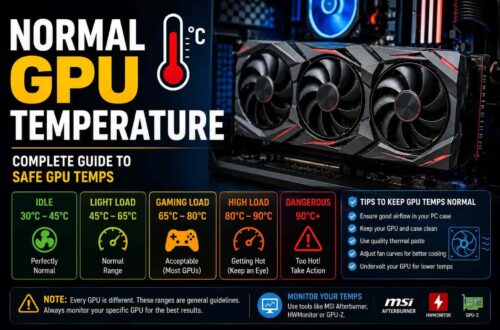
MSI Afterburner shows GPU temperature, fan speed, and load in real time. Launch a game and watch the fan speed readout. If it stays at zero while temps climb, something needs attention.
Run a Stress Test
FurMark pushes the GPU to maximum load in minutes. Fans should respond clearly. If temps rise without fans spinning up, investigate right away.
Force Fans Manually
In Afterburner, override the fan curve and set fans to a fixed percentage. If one fan stays silent while others respond, that specific fan likely has a bearing failure.
Workloads and Overclocking
Light Gaming
Light gaming in older titles may not push fans past the Zero RPM threshold at all.
Modern AAA Games
Modern AAA games at high settings will definitely spin fans up as temperatures rise.
Overclocking
Overclocking raises heat output so fans spin earlier and harder. If fans act strangely after an overclock, return to stock settings first to rule out instability.
Why Zero RPM Is Good for Your GPU
Fan bearings wear down over thousands of hours. Running fans only when needed meaningfully extends their lifespan.
Reduced Noise
Zero RPM mode keeps your system quieter during everyday tasks.
Extended Fan Lifespan
Less spinning means less wear on fan bearings over time.
No Real Idle Cooling Benefit
You can disable Zero RPM in Afterburner if you prefer constant low-speed airflow, but there is no meaningful thermal benefit at idle.
Final Thoughts
A GPU with stationary fans is usually behaving exactly as designed. Modern graphics cards rely on Zero RPM technology to reduce noise and extend fan lifespan when cooling is not needed.
What matters is not whether the fans spin all the time, but whether they respond when temperatures increase. If they spin up during gaming, rendering, or stress testing, your GPU cooling system is likely working exactly as intended.
FAQs
My Fans Were Spinning Yesterday and Stopped Today. Is It Broken?
Probably not. If the GPU is cool and you are doing light tasks, Zero RPM simply stopped the fans as intended. Check the temperature in Afterburner. If it looks normal and fans spin during gaming, everything is fine.
Is It Bad If GPU Fans Never Spin at All?
Only if the GPU is under heavy load and temps are climbing. At idle, still fans are healthy. During gaming or rendering they must always respond. If they never spin under any workload, investigate right away.
Should I Turn Off Zero RPM Mode?
Only if you prefer constant airflow for peace of mind. There is no thermal benefit at idle, and you give up the noise and longevity advantages for nothing.
Why Does Only One of My GPU Fans Spin Sometimes?
Some dual and triple fan GPUs stagger fan startup at different load points to save noise. This is often intentional. Use Afterburner to force all fans on and listen carefully. If one never responds at all, the motor may be failing.
My GPU Is Hot but Fans Are Not Spinning. What Do I Do?
Check fan curve settings in Afterburner first. Try forcing fans manually to confirm the hardware responds. Reinstall GPU drivers using DDU. If fans still do not respond to high temperatures, stop using the GPU under load until the issue is resolved.
How Do I Know If My GPU Temperature Is Too High?
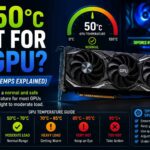
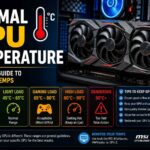
Use MSI Afterburner or GPU-Z to monitor in real time. Signs to watch for include:
- Thermal throttling warnings
- Unexpected game crashes
- Visual artifacts appearing on screen
- Sustained high temperatures under load