
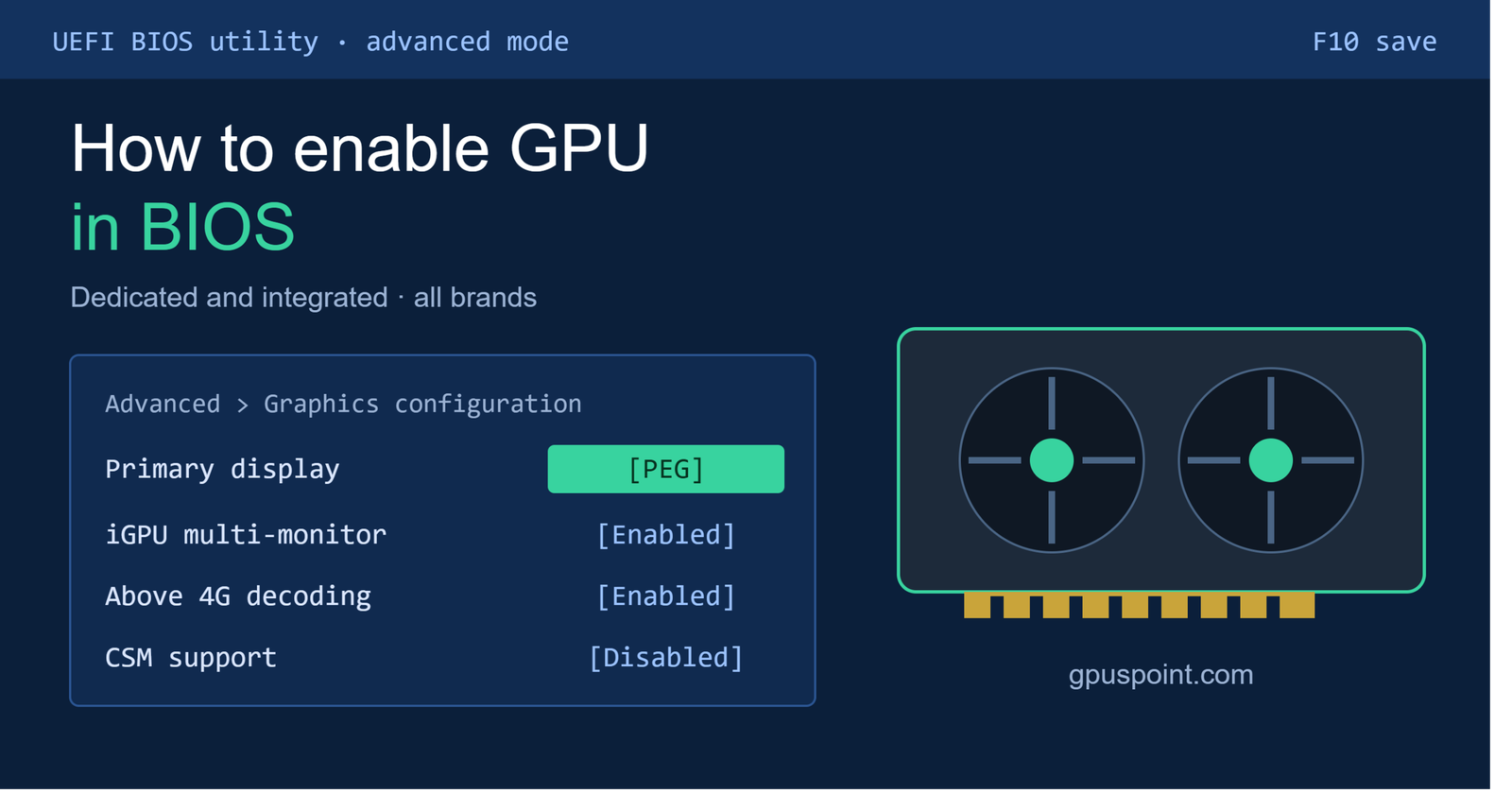
To enable your GPU in BIOS, restart your PC and press Del or F2 to enter BIOS. Go to Advanced > Graphics Configuration (or Chipset Configuration), set Primary Display or Init Display First to PEG/PCIe, then press F10 to save and exit. Your graphics card will now handle the display from the moment the PC boots.
Not every system names these settings the same way. ASUS, MSI, Gigabyte, and ASRock each use their own labels, and many laptops hide the option or don’t have it at all. Below you’ll find steps for dedicated and integrated GPUs, every major motherboard brand, laptops, and what to do when the GPU doesn’t show up.
What Does Enabling GPU in BIOS Mean?
Enabling a GPU in BIOS means telling the motherboard which graphics processor to start first at boot and which ones stay active. The BIOS (or UEFI on modern systems) decides whether the display signal comes from the graphics card in your PCIe slot or from the integrated graphics built into your CPU.
On most desktops, you don’t need to do anything. When a dedicated graphics card is installed, the default Auto setting usually detects it and makes it the primary display. Manual changes are only needed when Auto picks the wrong adapter, when the card isn’t initialized properly, or when you want both GPUs running at once.
If you’re unsure which kind of GPU you’re working with, read our guide on integrated vs discrete graphics. In short, integrated graphics live inside the CPU and share system memory, while a discrete (dedicated) GPU is a separate card with its own VRAM.
When Do You Need to Enable GPU in BIOS?
You need to change GPU settings in BIOS in three common situations.
The first is a new graphics card that shows no display. You’ve installed the card, connected the monitor, and the screen stays black, or the image only appears when the cable is plugged into the motherboard. The BIOS may still be set to use integrated graphics first. Before changing settings, make sure the card was installed correctly by following our guide on how to install a graphics card.
The second is a GPU that isn’t detected. Windows or the BIOS doesn’t list the graphics card at all. A wrong PCIe slot setting, a disabled slot, or a CSM conflict can cause this, though hardware problems are more common.
The third is using integrated and dedicated graphics together. Some users want to keep the iGPU active alongside the graphics card to run an extra monitor or to use Intel Quick Sync for faster video encoding in apps like Premiere Pro, HandBrake, or OBS. By default, many motherboards switch the iGPU off as soon as a card is detected, so you have to enable it manually.
How to Enter BIOS/UEFI?
Press the BIOS key repeatedly right after you turn on the PC, before the Windows logo appears. The key depends on your manufacturer:
| Brand | Common BIOS Key |
|---|---|
| ASUS, MSI, Gigabyte, ASRock (desktops) | Del or F2 |
| Dell | F2 (F12 for boot menu) |
| HP | Esc, then F10 |
| Lenovo | F2, F1, or the Novo button |
| Acer | F2 or Del |
If your PC uses Fast Boot and skips the key too quickly, enter BIOS from Windows 11 instead. Open Settings > System > Recovery, click Restart now next to Advanced startup, then choose Troubleshoot > Advanced options > UEFI Firmware Settings > Restart. The PC will reboot straight into BIOS.
Most modern boards open in a simplified EZ Mode. Press F7 to switch to Advanced Mode, where all GPU settings are located.
How to Enable Dedicated GPU in BIOS?
To enable a dedicated GPU, set the primary display adapter to PEG or PCIe, make sure the PCIe slot is active, and check the CSM setting if your card needs UEFI support.
Set Primary Display to PEG/PCIe
The main setting is usually called Primary Display, Init Display First, Primary Graphics Adapter, or Initial Display Output. It typically has these options:
- Auto: the motherboard chooses based on what it detects.
- IGFX / IGD / Onboard: integrated graphics comes first.
- PEG / PCIe: the graphics card in the main x16 slot comes first.
- PCI: legacy PCI slot cards, rarely used today.
Select PEG or PCIe, save with F10, and connect your monitor cable to the graphics card’s ports, not the motherboard’s. This is the single most important step. If you’re confused by the terminology, PEG stands for PCI Express Graphics and refers to the x16 slot meant for graphics cards.
Check PCIe Slot Settings
Some boards let you disable individual PCIe slots or set their speed manually. Look under Advanced > PCIe Configuration or PCI Subsystem Settings and confirm that:
- The x16 slot where your card is installed is Enabled.
- PCIe Link Speed or PCIe Gen is set to Auto.
A forced PCIe speed can cause problems, especially when you use a riser cable or install a newer card in an older board. If your system has trouble, setting the slot to Gen 3 manually can sometimes stabilize it, but Auto is the right starting point.
Disable CSM if the GPU Needs UEFI GOP
CSM (Compatibility Support Module) lets modern UEFI firmware behave like an old legacy BIOS. Many recent graphics cards only support UEFI booting through a feature called GOP (Graphics Output Protocol). When CSM is enabled on these systems, you may get a black screen until Windows loads, or no display at all.
Find CSM under the Boot menu and set it to Disabled. Before doing this, make sure Windows is installed on a GPT disk in UEFI mode. If your drive uses the older MBR layout, disabling CSM will stop Windows from booting. You can check this in Disk Management: right-click your system disk, choose Properties, and look at Partition style under the Volumes tab.
How to Enable Integrated GPU in BIOS (with a Graphics Card)?
To keep integrated graphics running alongside a graphics card, enable iGPU Multi-Monitor (or IGD Multi-Monitor) in BIOS. Without this setting, most motherboards turn off the iGPU when a dedicated card is detected.
Here’s how to do it:
- Enter BIOS and switch to Advanced Mode.
- Go to the graphics configuration menu (see the brand section below for the exact path).
- Keep Primary Display set to PEG/PCIe so the graphics card stays the main adapter.
- Set iGPU Multi-Monitor to Enabled.
- Save with F10 and reboot.
- Install the latest Intel or AMD integrated graphics driver in Windows.
Once enabled, you can plug a second monitor into the motherboard’s HDMI or DisplayPort, and apps that support Intel Quick Sync will be able to use it for encoding. This only works if your CPU has integrated graphics. Intel processors with an “F” suffix (like the i5-12400F) and many AMD Ryzen chips without the “G” suffix in older generations don’t include one.
GPU BIOS Settings by Motherboard Brand
Every manufacturer uses different names and menu paths for the same settings. Menus can also shift slightly between BIOS versions and between Intel and AMD boards, so treat these paths as a starting point and look for similar names if yours differ.
ASUS
On ASUS Intel boards, go to Advanced > System Agent (SA) Configuration > Graphics Configuration. Set Primary Display to PEG or PCIE, and enable iGPU Multi-Monitor if you want to use integrated graphics too.
On ASUS AMD boards, the setting is usually under Advanced > NB Configuration, labeled Primary Video Adaptor, with an IGFX Multi-Monitor option nearby.
For Resizable BAR, open Advanced > PCI Subsystem Settings and enable Above 4G Decoding and Re-Size BAR Support.
MSI
On MSI boards, open Settings > Advanced > Integrated Graphics Configuration. Set Initiate Graphic Adapter to PEG, and enable IGD Multi-Monitor to keep the iGPU active.
Resizable BAR options are under Settings > Advanced > PCI Subsystem Settings (named PCIe/PCI Sub-system Settings on some boards), where you’ll find Above 4G Memory/Crypto Currency Mining and Re-Size BAR Support.
MSI boards also have EZ Debug LEDs. A lit VGA LED means the board can’t initialize a graphics output, which usually points to a seating or power problem rather than a BIOS setting.
Gigabyte
On Gigabyte boards, go to Settings > IO Ports (sometimes Peripherals or Chipset on older BIOS versions). Set Initial Display Output to PCIe 1 Slot. To use integrated graphics as well, set Internal Graphics to Enabled instead of Auto.
Above 4G Decoding and Re-Size BAR Support are found in the same IO Ports menu on most recent boards.
ASRock
On ASRock boards, open Advanced > Chipset Configuration. Set Primary Graphics Adapter to PCI Express (or PCIE1), and enable IGPU Multi-Monitor if needed.
For Resizable BAR, look in Advanced > PCI Configuration (or Chipset Configuration on some models) for Above 4G Decoding and Re-Size BAR Support.
How to Enable GPU in BIOS on a Laptop?
Most laptops don’t have a GPU setting in BIOS at all. Laptop graphics switching is usually handled automatically by NVIDIA Optimus or AMD Switchable Graphics, and you control it from Windows instead.
Some gaming and workstation laptops do include BIOS options:
- Graphics Device / Display Mode with choices like Hybrid (Optimus), Discrete, or Dynamic. This is common on Lenovo Legion, ThinkPad workstation models, and some Dell and HP machines.
- MUX Switch settings, which route the display directly through the dedicated GPU and bypass integrated graphics. Many ASUS ROG, MSI, and Lenovo Legion laptops offer this in BIOS or in their control software (Armoury Crate, MSI Center, Lenovo Vantage).
Switching to Discrete mode can improve gaming performance but reduces battery life significantly. Be careful on older laptops: on some models, disabling integrated graphics completely can leave the built-in screen blank if the panel is wired only through the iGPU. If that happens, reset the BIOS to defaults (see the safety section below).
If your laptop has no BIOS option, you can still force apps to use the dedicated GPU from Windows. Follow our guide on how to switch to dedicated GPU for the Windows Graphics Settings, NVIDIA Control Panel, and AMD Software methods.
How to Check If the GPU Is Enabled After BIOS Changes?
Check Device Manager first. Press Win + X, open Device Manager, and expand Display adapters. Your graphics card should be listed without a yellow warning icon. If you enabled iGPU Multi-Monitor, you’ll see both adapters here.
Next, open Task Manager (Ctrl + Shift + Esc), go to the Performance tab, and look for GPU 0 and GPU 1. Run a game or a video and watch which GPU’s usage rises.
Finally, check the physical cable. A surprisingly common mistake is leaving the monitor connected to the motherboard’s video port. If the cable is in the motherboard, you’re using integrated graphics no matter what the BIOS says. Connect it to the ports on the graphics card’s bracket, usually lower on the back of the case.
For more ways to confirm which card is running, see how to see what graphics card you have.
GPU Not Showing in BIOS: What to Do?
If your graphics card doesn’t appear in BIOS, the cause is usually physical rather than a setting. Work through these steps in order:
- Reseat the card. Power off, unplug the PC, remove the GPU, and push it back firmly into the top x16 slot until the latch clicks. Our how to reseat GPU guide shows the full process.
- Check the power cables. Most graphics cards need 6-pin, 8-pin, or 12VHPWR power connectors from the PSU. Make sure every connector is fully inserted. Not sure what your card needs? Read do GPUs come with power cables, and confirm your supply is strong enough with what PSU do I need for my GPU.
- Reset CMOS. Clear the BIOS settings by using the motherboard’s Clear CMOS button or jumper, or by removing the coin battery for a few minutes. This undoes any setting that’s blocking the card.
- Update the BIOS. Newer GPUs sometimes need a firmware update on older motherboards, especially for UEFI GOP support. Use your motherboard’s flashback feature or integrated graphics to do this.
If none of these work, test the card in another PC or try a different slot. Our detailed guide on GPU not detected in BIOS covers every remaining fix.
Should You Enable Resizable BAR and Above 4G Decoding?
Yes, if your hardware supports it. Resizable BAR lets the CPU access the GPU’s entire VRAM at once instead of in small 256 MB chunks, which can raise frame rates in supported games, typically by a few percent and sometimes more.
Above 4G Decoding is required for Resizable BAR to work, because it allows the system to map devices above the 4 GB address space. Enable both together.
To use them, you need:
- A supported GPU (NVIDIA RTX 30 series or newer, AMD RX 6000 series or newer, or Intel Arc).
- A supported CPU and motherboard (generally Intel 10th gen or newer, AMD Ryzen 3000 or newer, with an updated BIOS).
- UEFI boot mode with CSM disabled.
- An updated GPU driver (and, for some NVIDIA cards, an updated VBIOS).
Intel Arc cards in particular depend heavily on Resizable BAR and perform noticeably worse without it. After enabling it, you can confirm it’s active in NVIDIA Control Panel (System Information) or AMD Software (where it’s called Smart Access Memory).
PCIe bandwidth also plays a role in how your card performs. See PCIe 4 vs 5 for GPU to understand whether your slot is holding your card back.
Is It Safe to Change GPU Settings in BIOS?
Yes, changing GPU settings in BIOS is safe and won’t damage your hardware. The main risk is a wrong setting that leaves you with no display, for example setting Primary Display to IGFX while your monitor is plugged into the graphics card, or disabling CSM on an MBR system.
If that happens, recovery is simple:
- Move the monitor cable to the other video output (motherboard or GPU) and see if the image returns.
- Load Optimized Defaults from the BIOS Exit menu (or press F5 on many boards) if you can still reach the screen.
- Reset CMOS if you can’t see anything at all. This returns every setting to factory defaults.
Change one setting at a time and save after each change. That way, if something goes wrong, you’ll know exactly which setting caused it.
FAQs
Does a GPU need to be enabled in BIOS?
Usually not. On most desktops, the BIOS automatically detects a graphics card and uses it as the primary display. You only need to change settings if Auto chooses integrated graphics, the card isn’t detected, or you want both GPUs active.
Can I disable integrated graphics in BIOS?
Yes. Set the integrated graphics option (such as Internal Graphics or iGPU) to Disabled, or set Primary Display to PEG and leave iGPU Multi-Monitor off. Keep your monitor connected to the graphics card before doing this, or you’ll lose display output. Our guide on how to disable integrated graphics covers each brand step by step.
Why does my PC boot to integrated graphics?
Usually because the monitor cable is connected to the motherboard instead of the graphics card, or because Primary Display is set to IGFX. It can also happen if the graphics card isn’t seated properly or isn’t getting power, so the BIOS falls back to the iGPU.
Do I need to update BIOS for a new GPU?
Not always, but it helps. Older motherboards may need a BIOS update to support UEFI GOP, Resizable BAR, or newer PCIe generations. If a new card shows no display or isn’t detected, a BIOS update is one of the first things to try after checking the hardware.
