




You open Task Manager, check GPU usage, and see 99%. Panic sets in. Or you see 40% and wonder why your GPU is “sleeping” during a game. Both situations confuse gamers every day, and both have simple explanations.
GPU utilization is one of the most misunderstood numbers in PC gaming. This guide breaks it all down, including what normal looks like, what low usage means, and what actually signals a problem.
What Does GPU Usage Actually Mean?
GPU usage is the percentage of your graphics card’s processing power being used at any moment. Think of your GPU like a highway. Full utilization means every lane is packed with traffic. Low utilization means cars are spread out with empty lanes in between.
Your GPU has thousands of shaders working in parallel. When a game pushes enough visual complexity, those shaders stay busy. When a game does not, they sit idle.
There are two separate metrics worth knowing:
GPU Core Usage refers to how hard the chip itself is working to render frames.
VRAM Usage refers to how much video memory is being used to store textures, assets, and frame data. These are different things. A GPU can have 99% core usage and only 6GB of 12GB VRAM used, or the opposite.
What Is Considered Normal GPU Usage While Gaming?
90% to 100% GPU Usage
This is the sweet spot for most gamers.
When your GPU runs at 90 to 100% utilization, it means your graphics card is fully engaged with the game. It is doing exactly what it was built to do. In demanding titles like Cyberpunk 2077 at 4K ultra settings or Red Dead Redemption 2 with full graphics, 99% GPU usage is completely expected.
High utilization at high frame rates is ideal. If you are getting 120 FPS in a game with 99% GPU usage, your system is running perfectly.
70% to 90% GPU Usage
This range is also healthy in many scenarios.
You will commonly see this in games with CPU-dependent sections, during cutscenes, in areas with fewer visual elements, or when running at lower resolutions. A game like Valorant may hover here because competitive esports titles are not as visually demanding as AAA open-world games.
It can also indicate a mild CPU bottleneck where the GPU finishes frames faster than the CPU can feed it new instructions.
Below 70% GPU Usage
This is where questions start.
Low utilization below 50% almost always points to a bottleneck or a limiter somewhere in your system. Your GPU wants to work but something is holding it back.
Is 100% GPU Usage Bad While Gaming?
No. It is not bad at all. This is one of the biggest myths in PC gaming. Many beginners see 100% and assume the GPU is “maxed out” in a dangerous way. In reality, 100% utilization simply means your GPU is doing its job at full capacity.
GPUs are engineered to handle sustained 100% loads. They have thermal protection, boost clocks, and power limits built in to manage long gaming sessions safely.
The only time 100% usage becomes a concern is when it is paired with unusually high temperatures above 90 degrees Celsius or sudden frame rate drops. In that case, the issue is thermal throttling or a power delivery problem, not the utilization itself.
Why Is My GPU Usage Low During Gaming?
Low GPU usage is almost always caused by something limiting the GPU before it can reach full load.
CPU Bottleneck
This is the most common culprit.
If your CPU cannot process game logic, physics, and AI fast enough, it starves the GPU of work. The GPU finishes its frames and then waits. You will see low GPU usage paired with high CPU usage, often above 90%.
This happens frequently in GTA V and games that are heavily CPU-dependent. Pairing an older i5 with an RTX 4080 almost guarantees a CPU bottleneck.
FPS Caps
If you have a frame rate cap set in the game or driver, the GPU will stop working once it hits that number.
A 60 FPS cap in a game your GPU can render at 200 FPS will artificially drop utilization. The GPU does not need to try harder because the cap prevents additional frames.
V-Sync
V-Sync locks your frame rate to your monitor’s refresh rate. If your GPU can render faster than your display, it throttles back to match. This lowers utilization without hurting visual quality.
Power Settings
If the Windows power plan is set to Balanced or Power Saver, your GPU may not receive full power. Always set it to High Performance or, on laptops, to the dedicated GPU profile in AMD Adrenalin or NVIDIA App.
Driver Issues
Corrupted or outdated drivers sometimes prevent the GPU from reaching full utilization. If your usage is unusually low after a driver update, a clean reinstall using DDU (Display Driver Uninstaller) usually fixes it.
Background Applications
Chrome, Discord, streaming software, or video playback can consume CPU resources. This indirectly starves your GPU by slowing down the CPU that feeds it.
GPU Usage by Game Type
Competitive Esports Games
Fortnite, Valorant, and CS2 are designed to run at very high frame rates on modest hardware. Your GPU usage in these games is often 40 to 70% at high refresh rates because the visual load is intentionally light.
AAA Open World Games
Cyberpunk 2077, Hogwarts Legacy, and Red Dead Redemption 2 are built to push modern GPUs to their limits. Expect 95 to 100% utilization at high settings and native resolution.
Simulation Games
Flight simulators and city builders tend to be CPU-heavy. GPU usage varies widely because the engine spends a lot of time on game logic rather than purely visual rendering.
Strategy Games
Turn-based and real-time strategy games rarely max out a GPU. Utilization of 30 to 60% is normal here because the rendering demands are low.
Ray Tracing Workloads
Enable ray tracing in Cyberpunk 2077 or Minecraft RTX and your GPU usage will shoot up significantly. Ray tracing is one of the most GPU-intensive features available. Enabling DLSS or FSR alongside it helps recover frame rates while keeping the visual fidelity high.
GPU Usage vs GPU Temperature
High GPU usage does not always mean high temperatures, and high temperatures do not always indicate a serious problem. However, if a GPU Is Not Seated Properly, it can cause unstable performance, overheating, and unexpected system behavior.
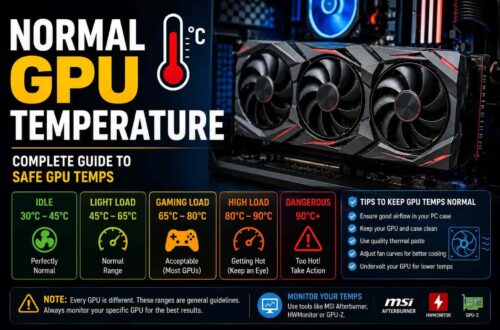
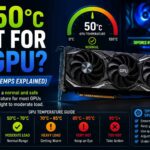
Normal GPU temperatures while gaming typically range between 65°C and 85°C for most graphics cards. High-end GPUs such as the RTX 4090 and RX 7900 XTX can operate at 80°C to 85°C under full load without issues. However, when a GPU Is Not Seated Properly in the PCIe slot, heat buildup and performance inconsistencies may occur even at normal usage levels.
Common warning signs include temperatures consistently exceeding 90°C, sudden frame rate drops, display flickering, system crashes, or fans running at maximum speed for extended periods. These symptoms can result from dust accumulation, poor case airflow, aging thermal paste, or a GPU that is not seated properly.
Thermal throttling occurs when a graphics card reaches its maximum safe temperature and automatically reduces clock speeds to prevent damage. If a GPU Is Not Seated Properly, power delivery and cooling efficiency may be affected, increasing the likelihood of thermal throttling and causing noticeable frame rate drops during gaming or demanding workloads.
GPU Usage vs VRAM Usage
These two metrics are completely separate and beginners often confuse them.
GPU usage tells you how busy the chip is. VRAM usage tells you how full the frame buffer is.
Running out of VRAM is actually worse for performance than running out of GPU processing power. When VRAM fills up, the system begins storing texture data in slower system RAM, which causes major stutters and frame time spikes.
In a game like Hogwarts Legacy at 4K with ultra textures, you can easily hit 10GB or 12GB of VRAM usage on a modern card. Monitor both numbers separately.
How to Check GPU Usage While Gaming
MSI Afterburner
Download and install MSI Afterburner. Open it and enable the on-screen display through RivaTuner Statistics Server. You can track GPU usage, VRAM, temperature, and frame rate as an overlay inside any game.
Task Manager
Press Ctrl + Shift + Esc and click Performance, then GPU. This gives you a real-time readout but lacks historical tracking and overlay support.
NVIDIA App
NVIDIA’s updated app replaced GeForce Experience. Open the Performance tab to see GPU utilization, clock speeds, temperature, and power draw in a clean interface.
AMD Adrenalin
For AMD GPU owners, open Adrenalin software and navigate to Performance. It provides detailed monitoring including GPU usage, VRAM, temperature, and fan speeds with overlay support.
Warning Signs Your GPU Usage Is Not Normal
Most GPU usage is harmless, but these signs indicate something needs attention.
Stuttering with usage spikes often means VRAM is overfilling or a driver bug is causing GPU scheduling issues.
Frame drops from 100 FPS to 30 FPS repeatedly suggest thermal throttling or power delivery problems.
Driver crashes with a black screen recovery usually come from an unstable overclock, corrupted drivers, or failing hardware.
Artifacting such as colored pixels, screen tearing lines, or visual glitches that are not in the game itself can indicate a dying GPU, bad driver, or overheating memory.
If you see any of these, start by reinstalling drivers with DDU, checking temps in HWiNFO, and reducing overclocks if any are active.
Tips to Optimize GPU Performance
Update your drivers regularly through NVIDIA App or AMD Adrenalin. Driver updates often bring meaningful FPS gains for newly released games.
Enable DLSS on NVIDIA GPUs or FSR on AMD and Intel GPUs. These upscaling technologies dramatically boost frame rates with minimal visual impact. DLSS Quality mode in Cyberpunk 2077 can recover 40% more FPS without obvious quality loss.
Set your Windows power plan to High Performance. On laptops, also set the game’s GPU preference to High Performance GPU in Windows Graphics settings.
Lower shadow quality and draw distance before lowering resolution. These settings often impact CPU and GPU load heavily without obvious visual tradeoffs at normal gaming distances.
Improve airflow in your PC case by adding intake fans at the front and an exhaust fan at the top or rear. Better airflow directly reduces GPU temperatures and can prevent thermal throttling.
Conclusion
High GPU usage is healthy. Low GPU usage signals a bottleneck. Neither extreme is automatically dangerous. The number that actually matters is your gaming experience. Stable frame rates, smooth performance, and reasonable temperatures are what define a healthy system, not a specific GPU utilization percentage.
Use MSI Afterburner or HWiNFO to monitor your GPU during gaming sessions. Watch for temperatures above 90 degrees, sudden frame drops, or driver crashes. Those are real warning signs. A 99% utilization number on its own is not. Now you have everything you need to read your GPU’s health like a hardware expert.
FAQS
Is 100% GPU Usage Normal While Gaming?
Yes. 100% GPU usage means your graphics card is being fully utilized, which is exactly what it is designed for. It only becomes a concern if temperatures exceed 90°C or if performance suddenly drops while the GPU remains under full load.
What GPU Usage Is Considered Too High?
GPU usage itself is not the problem—temperature is. A GPU running at 99–100% utilization while staying within safe temperature limits and maintaining stable frame rates is operating normally.
Why Is My GPU Usage Only 50% in Games?
Low GPU usage often points to a CPU bottleneck. If your CPU is running near 90–100% while the GPU remains underutilized, the processor is limiting performance. FPS caps, V-Sync, or power-saving settings can also reduce GPU usage.
Can High GPU Usage Damage a Graphics Card?
No. Modern GPUs are built to handle sustained high workloads and include thermal throttling and power protection mechanisms. Running at 100% utilization will not damage the card as long as temperatures remain within safe limits.
How Can I Increase GPU Usage While Gaming?
To increase GPU utilization, remove FPS caps, disable V-Sync if appropriate, switch Windows to a High Performance power plan, and increase graphics settings or resolution. If a CPU bottleneck is limiting performance, upgrading the processor may help the GPU reach higher usage levels.
Is 90%–100% GPU Usage Better Than Low GPU Usage?
In most gaming scenarios, yes. High GPU usage indicates that your graphics card is being fully utilized to deliver the best possible performance. Low GPU usage may suggest a CPU bottleneck, frame rate limit, or another system restriction.
What Is the Ideal GPU Usage for Gaming?
The ideal GPU usage depends on the game and settings, but 95–100% usage is generally considered optimal in GPU-intensive games because it means the graphics card is maximizing its performance potential.
Should I Worry If My GPU Usage Fluctuates?
No. GPU usage naturally fluctuates depending on the scene being rendered, game optimization, frame rate limits, and background system activity. Occasional changes in utilization are completely normal.
How Do I Check GPU Usage While Gaming?
You can monitor GPU usage using Windows Task Manager, NVIDIA App, AMD Software, MSI Afterburner, or other hardware monitoring tools. These utilities display real-time GPU load, temperature, clock speeds, and VRAM usage.