
Last updated:
Your graphics card is the hardest-working component in your PC. And how its fans move air, just a few centimeters of direction, directly decides whether you get smooth 144fps gaming or a throttled mess that hits 60°C before you even reach the main menu.
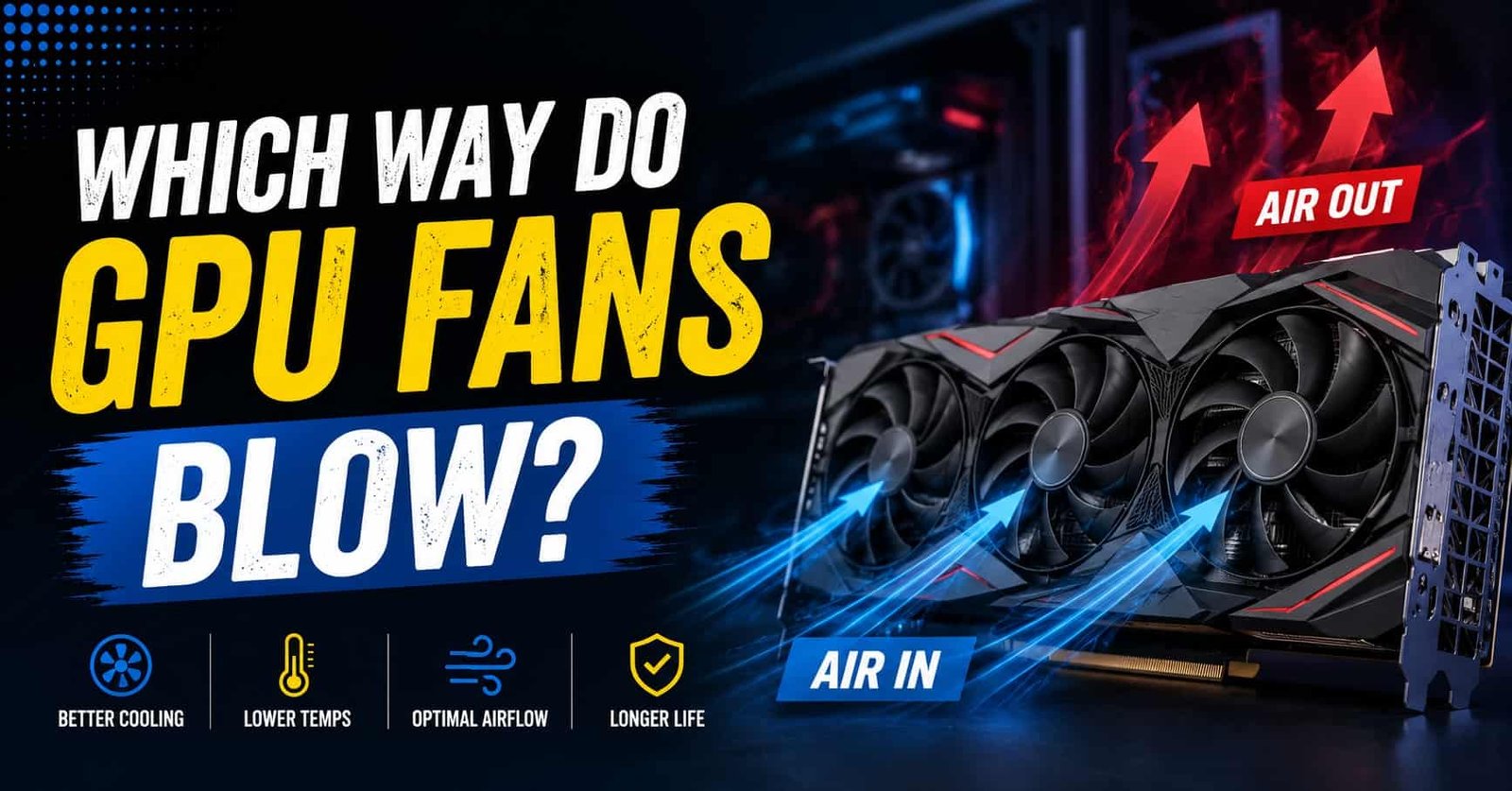
GPU fans usually blow air toward the graphics card heatsink to cool it down. Most modern GPUs pull cool air in through the fan blades and push hot air across the heatsink and out of the PC case or through rear vents. You can identify airflow direction by checking the arrows on the fan housing or observing the blade curve.
Here’s something most people don’t realize: GPU cooling failures aren’t usually hardware problems. There are airflow problems. Wrong fan orientation, poor case setup, cramped builds, blocked vents, these kill performance just as surely as a broken cooler would.
According to thermal engineering data from major GPU manufacturers, graphics cards running at sustained temperatures above 85°C can lose up to 15% of their peak performance due to thermal throttling alone. In a worst-case scenario with completely blocked airflow, some GPUs have been recorded hitting 105°C before emergency shutdown. That’s not just a performance issue, it’s a lifespan issue.
So let’s fix that. This guide covers exactly which way GPU fans blow, why it matters, what mistakes people make, and how to build a cooling setup that keeps your GPU running fast and quiet for years.
Which Way Do GPU Fans Blow?
GPU fans draw cool air in toward the heatsink, then the heatsink pushes that air outward. The fans themselves are intake fans; they pull air from the environment (usually from below the card, since that’s where cooler air settles) and force it over the copper heatpipes and aluminum fins.
Think of it like a radiator in a car. The fans push air through the fins, the fins absorb heat from the heatpipes and that warmed air exits somewhere. On most consumer GPUs, that somewhere is back into your case. On blower-style GPUs, it exits directly out the back panel of your PC.
Quick Test: Not sure which way your GPU fans spin? Hold a small piece of tissue paper near the card while it’s under load. The tissue will get pulled toward the fans if they’re intake-facing (which they almost always are).
How GPU Cooling Systems Actually Work
Not all GPU coolers are built the same. There are two main designs you’ll encounter, and they handle airflow in completely different ways. Understanding the difference matters a lot when you’re buying a card or building a PC.
Open-Air GPU Coolers
Open-air coolers are the most common type. You’ll find them on everything from a mid-range RTX 4070 to a high-end RX 7900 XTX. They use two or three fans sitting in front of an exposed heatsink. Air flows in through the fan blades, gets pushed through the heatsink fins, and then exits freely into the case interior.
The advantage is excellent cooling efficiency. Open-air designs move a huge volume of air and keep the GPU much cooler per noise unit. The downside is that all that hot air goes back into your case, and your case fans have to deal with it.
For a mid-tower with decent case ventilation, say, a Fractal Design Meshify or a Lian Li Lancool, this isn’t a problem at all. For a compact mATX build with just two case fans and tight clearances, it can get messy.
Blower-Style GPU Coolers
Blower-style coolers use a single turbine fan that spins air in through the center and exhausts it out the rear I/O bracket. All the hot air exits directly out of the case through the PCIe slot area.
This design gets a bad reputation for being loud, and often it is. But it has a specific use case where it genuinely shines: multi-GPU workstation setups, server builds, and small form factor cases where there’s no room for that expelled heat to go anywhere else.
If you have two GPUs side by side, the blower on the top card won’t dump heat onto the bottom card. That alone makes it the only sensible choice for dense professional workstations.
How to Tell Which Direction Your GPU Fans Blow
Figuring out GPU airflow direction is simpler than it looks; no special tools needed. Start with the fan blades: their curve shows airflow. If the leading edge faces you, it’s pushing air out; if the trailing edge faces you, it’s pulling air in. Most GPU fans pull air into the heatsink.
You can also do a quick tissue test. Hold a light piece of tissue near the fan while the system is under load. If it’s pulled in, that’s intake; if it’s pushed away, that’s exhaust.
For a more structural clue, follow the heatsink and heatpipes. Air typically flows across the fins, moving heat from the GPU die outward through the cooler design. Manufacturer specs from brands like ASUS, MSI, Gigabyte, or Sapphire often confirm the exact airflow layout if you check the model online.
Why GPU Airflow Direction Matters for Performance
This isn’t just theory, GPU fan direction and case airflow directly impact performance. When temperatures rise, modern GPUs automatically reduce clock speeds (thermal throttling), causing lower FPS and unstable frame times without any warning. Even a high-end card like an RTX 4090 can perform far below its potential if airflow is poor.
High temperatures also reduce hardware lifespan over time and increase fan noise as the GPU works harder to stay cool. In hot environments (30°C+), temperatures rise even more since a PC can only cool relative to room temperature. Good airflow keeps performance stable, temperatures lower, and the system quieter.
Intake vs. Exhaust Explained for GPUs
GPU cooling works through a balance of intake and exhaust airflow. Understanding the difference helps you build a cooler and more efficient PC setup.
GPU Fans Handle Intake
Most GPU fans pull cool air inward through the heatsink to absorb heat from the graphics card. This is why modern GPUs rely heavily on strong front intake airflow inside the case.
Case Fans Handle Exhaust
After the air heats up, rear and top case fans push that hot air out of the system. Open-air GPUs release heat inside the case, while blower-style GPUs exhaust hot air directly out the rear of the PC.
Common GPU Airflow Mistakes People Make
These are the mistakes I see most often in PC builds, from budget gaming rigs to expensive workstations. Every single one of them is fixable.
Blocking the GPU intake
Installing a GPU directly below a hard drive bay, or next to a solid side panel with only 5mm clearance, starves the fans of cool air. The fans spin faster but move less volume. Always give your GPU at least 25–30mm of clearance below the fans.
No front intake fans
If your case has no front fans or they’re set to exhaust, your GPU is pulling heated air that’s already circulated through your CPU and other components. Front fans on intake are the foundation of healthy PC airflow.
Cable management chaos
A rats’ nest of cables sitting directly in front of the GPU fan intake restricts airflow dramatically. Modular PSUs exist for a reason. Zip-tie cables to the back of the case tray and keep the airpath clear.
Wrong case for the GPU
Putting a triple-fan 340mm GPU into a mATX case designed for 240mm cards is a recipe for thermal problems. Check your case’s maximum GPU length and heatsink clearance before buying.
Ignoring dust buildup
A dust-clogged heatsink can raise GPU temperatures by 10–20°C over time. It’s not dramatic; it sneaks up on you over 12–18 months. Clean your GPU heatsink fins with compressed air every 6 months.
All exhaust, no intake
Having only rear exhaust fans with no front intake creates negative pressure. Unfiltered air rushes in through every gap and seam, bringing dust with it. Aim for slightly positive or balanced pressure.
Best Case Airflow Setup for GPU Cooling
Optimize your case airflow to keep GPU temperatures lower, improve gaming stability, and prevent heat buildup during heavy workloads.
Front Intake and Rear Exhaust Setup
The most effective airflow setup for most gaming PCs is simple. Use two or three front intake fans to pull cool air into the case and one rear exhaust fan to push hot air out. This creates a steady front-to-back airflow path that feeds cool air directly to the GPU.
Add Top Exhaust for High-End GPUs
Power-hungry GPUs generate massive heat under load. Adding one or two top exhaust fans helps remove rising hot air before it gets trapped inside the case. This improves thermal performance during long gaming or rendering sessions.
Positive Air Pressure Works Better
A slightly positive airflow setup means your intake fans move more air than the exhaust fans. This reduces dust buildup and helps maintain cleaner airflow channels inside the case. It also prevents hot air from circulating unpredictably.
Airflow Tips for Compact PC Builds
Small ITX and mATX cases need smarter airflow planning because space is limited. Vertical GPU mounting or blower-style GPUs can help improve cooling in tighter builds. Keeping enough clearance between the GPU and side panel is important for proper airflow.
Streaming and Multi-Tasking Cooling Considerations
Streaming increases CPU heat along with GPU heat. That extra warmth can raise overall case temperatures quickly. Strong front intake airflow and separate cooling paths for the CPU and GPU help maintain stable temperatures during gaming and streaming together.
Conclusion
GPU cooling is not just about lower temperatures. It directly affects gaming performance, noise levels, and hardware lifespan. A well-balanced airflow setup helps your GPU stay cooler, avoid thermal throttling, and run more efficiently under load. Even simple upgrades like better case fans or cleaner airflow paths can make a major difference. Good cooling keeps your entire PC faster, quieter, and more reliable over time.
FAQS
Do GPU fans pull air in or push air out?
Most GPU fans pull cool air inward through the heatsink to cool the graphics card efficiently.
Are GPU fans intake or exhaust?
GPU fans usually act as intake fans, while rear and top case fans handle exhaust airflow.
Does GPU airflow direction affect temperatures?
Yes. Poor airflow direction can trap heat inside the case and increase GPU temperatures significantly.
Which GPU cooling design is better: blower or open-air?
Open-air GPUs offer better cooling performance in well-ventilated cases, while blower GPUs work better in compact or restricted airflow setups.
Is Streaming CPU or GPU Intensive?
Streaming uses both CPU and GPU, but it is mostly GPU intensive when hardware encoding is enabled. The CPU handles game logic and background tasks, while the GPU manages video encoding for smoother streaming and better performance.
Do GPU Brands Matter?
Yes, Do GPU Brands Matter is a common question for users.
- Brands matter because cooling, build quality, and noise levels can be different.
- Performance is similar, but warranty and extra features can vary between brands.

One thought on “Which Way Do GPU Fans Blow?”