

Live streaming has exploded over the last five years. Twitch alone crossed 7 million active streamers in 2023 and YouTube Gaming reports over 800 million hours of live content watched every single day. That number keeps climbing.
Yet behind every smooth stream is a PC working extremely hard. When that PC cannot keep up you get dropped frames at the worst moments. You get a stream that freezes mid-clutch. Your fans spin so loud your microphone picks them up. Your game drops from 144fps down to 50fps the moment you go live.
Most people blame their internet connection. The real problem is almost always inside the machine. Specifically, it comes down to how your CPU and GPU are dividing the workload between gaming and encoding.
Understanding which component handles what can completely transform your streaming performance. This guide breaks it all down without the technical jargon.
Is Streaming CPU or GPU Intensive?
The short answer is: it depends on which encoder you use.
Streaming is CPU intensive when you use software encoding. Software encoding means your processor is doing all the work of compressing your gameplay into a streamable video format. The most common software encoder is x264 and it is extremely demanding on your CPU.
Streaming is GPU intensive when you use hardware encoding. Hardware encoding uses a dedicated chip built into your graphics card specifically for video processing. NVIDIA calls theirs NVENC. AMD calls theirs VCE (Video Coding Engine). Intel has QuickSync built into most of their processors.
Here is what most guides miss: hardware encoders like NVENC do not actually use your GPU’s main processing cores (CUDA cores). They use a completely separate silicon block on the chip that sits idle during gaming. This means NVENC encoding adds almost zero load to your gaming performance. That is a massive insight most beginner streamers never hear.
So the real question is not which component streaming uses. It is the encoding path you have chosen and whether your hardware is up to the task.
What Happens Inside Your PC While Streaming?
When you hit “Start Streaming” in OBS, your PC instantly starts juggling multiple heavy tasks at once. Here is exactly what each component is doing.
CPU Tasks During Streaming
Your processor handles far more than just encoding. While streaming it is simultaneously:
Running game logic for whatever you are playing. Fortnite alone uses 4 to 6 CPU threads actively. Minecraft with large render distances can push CPU usage past 80% on mid-range chips.
Handling all audio processing. Every microphone input, every Discord call and every game sound effect passes through your CPU first.
Managing OBS scene rendering and capturing. OBS grabs your desktop or game window using CPU resources before it even starts encoding.
Running Windows background tasks. Windows Update Task Scheduler, antivirus scans and browser tabs all compete for CPU attention while you stream.
If you use x264 encoding, your CPU is also compressing every single video frame in real time on top of all of this. On a 6-core processor like an older Intel Core i5 this can push total usage past 95%, which is where dropped frames and audio desync begin.
GPU Tasks During Streaming
Your graphics card has two main jobs during a gaming stream.
The primary job is rendering your game. Every frame you see involves the GPU calculating lighting, textures, reflections and draw calls. A demanding game like Cyberpunk 2077 on high settings can push a mid-range GPU to 98% utilization on its shader cores.
The secondary job only exists when you use GPU hardware encoding. NVENC and AMD VCE handle the video compression. Critically, these encoders operate on a completely separate chip within the GPU. Your RTX 4070, for example, has dedicated NVENC hardware that does not interfere with the CUDA cores running your game. Benchmarks from Linus Tech Tips and various hardware labs consistently show NVENC adds less than 2% to overall GPU load during streaming.
This is why hardware encoding has become the standard recommendation for single-PC streamers. You get encoding essentially for free.
CPU vs GPU Streaming Explained Simply
Think of your CPU as a highly skilled chef who can prepare any dish from scratch. When you use the x264 software encoding, you are asking that chef to cook a five-course meal while also managing every other station in the kitchen. Eventually, something gets dropped.
Your GPU is like a specialist station with dedicated equipment. It has a machine specifically built to package food for delivery. When you route your streaming through NVENC, you are handing the packaging job to that dedicated machine. The chef is now free to focus entirely on cooking the actual meal.
The tradeoff is quality versus performance. Software encoding (x264) at the same bitrate produces a slightly sharper image than hardware encoding. This is measurable in pixel-level comparisons. However, on Twitch with a standard 6000kbps bitrate cap most viewers cannot tell the difference.
The visual gap between x264 medium and NVENC at equivalent bitrates has closed significantly since NVIDIA’s 7th generation NVENC found in RTX 30 and 40 series cards.
Which Is Better for Streaming Games?
For gaming and streaming on a single PC: GPU encoding (NVENC or AMD VCE) wins every time. You preserve CPU headroom for the game, and your stream stays stable.
For streaming without gaming (just-chatting podcast commentary): CPU encoding with x264 can be used at slow or medium preset for higher quality since the CPU is not competing with a game engine.
For Twitch and YouTube Gaming: NVENC H.264 or NVENC HEVC (H.265) is ideal. HEVC gives better quality at the same bitrate but requires viewers to have HEVC-compatible devices.
For laptop streaming: This is an area most guides completely ignore. Laptops throttle both CPU and GPU when both run at high loads simultaneously because they share a thermal budget. If you stream on a laptop, always use hardware encoding and cap your in-game frame rate to reduce GPU heat. Uncapped frames on a laptop during a stream is the fastest path to thermal throttling and a crashed stream.
For dual-PC setups: The gaming PC handles no encoding at all. It just sends a raw video signal via a capture card to the streaming PC. The streaming PC can then use x264 at a slow or even slower preset for maximum quality since it has no game to run simultaneously.
Signs Your PC Cannot Handle Streaming Properly
Your hardware is telling you it is struggling. You just need to know what to listen for.
Dropped frames: OBS shows dropped frames in the bottom right corner. If this number climbs during heavy game scenes, your encoder is falling behind. This is almost always a CPU issue with x264 or a GPU issue if your graphics card is at 99% on gaming alone.
Stream freeze with game running fine: Your game feels smooth but viewers report the stream is frozen or stuttering. This is a classic encoding overload symptom. The encoder dropped so many frames it appeared frozen.
FPS drops precisely when you start streaming: Your game was running at 120fps. You clicked Start Streaming, and it dropped to 70fps. This is x264 stealing CPU threads from your game.
Overheating and loud fans: Streaming pushes components harder than gaming alone. If your CPU hits 95 degrees Celsius under streaming load, your thermal paste may need replacing or your case airflow needs improvement. Sustained overheating causes automatic throttling which directly causes dropped frames.
Audio desync: Your voice gradually falls out of sync with your video. This often means your CPU is so overloaded that it cannot keep audio and video timestamps aligned properly.
Buffering for viewers on a stable connection: If your upload speed is fine, but viewers buffer your stream anyway, it is likely sending inconsistent data because encoding is dropping frames irregularly.
Best Streaming Setup for Beginners
Most streaming guides recommend hardware that is either outdated or far too expensive. Here are realistic setups for 2026.
Budget Streaming Setup (Under $600 total build). For games like Minecraft, Valorant or CS2, this works well. A Ryzen 5 5600 paired with an RTX 3060 covers everything. Use NVENC at 1080p30 or 1080p60 with 6000kbps on Twitch. OBS settings: NVENC H.264 / Preset: P4 Balanced / Profile: High / Keyframe: 2.
Mid-Range Streaming PC ($900 to $1300). A Ryzen 7 7700X or Intel Core i5-13600K paired with an RTX 4070 handles Fortnite Warzone and Apex at 1080p60 easily. NVENC 7th gen on RTX 40 series cards produces noticeably cleaner streams than older NVENC generations. This is the sweet spot for Twitch partnered streamers.
High-End Streaming Setup ($2000 and above). Core i9-13900K or Ryzen 9 7950X combined with an RTX 4080 or 4090. This tier lets you comfortably use x264 at medium preset while gaming at 1440p. At this level, you might also consider streaming at 1440p60 if your Twitch subscription tier allows it through Squad Stream or if you use YouTube Gaming, which has no bitrate cap restrictions.
OBS Settings That Actually Matter: Set your keyframe interval to 2 seconds. Never leave it on auto. This prevents visual artifacts during fast-motion sequences and helps streaming platforms buffer your feed properly.
Use CBR (Constant Bitrate), not VBR (Variable Bitrate), for Twitch. VBR is fine for YouTube but Twitch’s ingest servers handle CBR more reliably.
How to Improve Streaming Performance
These are practical changes that have real, measurable impact.
Switch to hardware encoding first. This single change improves more streaming problems than anything else. Open OBS > Settings > Output > Encoder. Change from x264 to NVENC H.264 or AMD HW H.264.
Lower your output resolution before lowering the bitrate. Many beginners lower the bitrate, hoping to fix dropped frames. But the real fix is reducing encoding complexity. Try 1280×720 at 6000kbps instead of 1920×1080 at 6000kbps. The lower resolution encodes significantly faster.
Close background applications. Chrome uses between 0.5GB and 3GB of RAM and actively consumes CPU cycles. Discord with hardware acceleration enabled uses GPU resources. Close everything not related to streaming before going live.
Use Ethernet, not Wi-Fi. Wi-Fi introduces packet loss even on a fast connection. Streaming requires a stable, consistent upload, not just a fast one. A wired gigabit connection eliminates most network-related dropped frames.
Set OBS process priority to Above Normal. Right-click OBS in Task Manager and raise its process priority. This tells Windows to give OBS CPU time before other background processes compete for it.
Upgrade RAM if you have 8GB or less. In 2026, 8GB of RAM is insufficient for gaming and streaming simultaneously. Windows 11 alone uses 3 to 4GB. OBS uses 300 to 800MB. The game uses the rest. Upgrading to 16GB or 32GB eliminates constant paging to disk, which causes stuttering that shows up on the stream.
Improve case airflow. Add intake fans at the front and exhaust fans at the rear. Sustained streaming sessions push temperatures higher than normal gaming because both CPU and GPU run at higher average loads for longer periods. Better airflow prevents throttling.
Should You Upgrade Your CPU or GPU for Streaming?
This depends entirely on your current bottleneck.
Upgrade your CPU if: You use software encoding and your CPU sits above 80% during streams. You stream without gaming (podcasts, tutorials, just chatting). Your current processor has fewer than 6 cores. You run a dual-PC setup where the streaming PC handles all encoding.
Upgrade your GPU if: Your GPU sits at 99% while gaming before streaming even starts. You want to use NVENC but your current card is older than the GTX 10 series (Pascal). You want to stream at higher quality using NVENC HEVC and need 7th-gen NVENC from RTX 30 or 40 series.
Upgrade neither and optimize first if: You have not yet tried switching from x264 to hardware encoding. You have not adjusted OBS settings or lowered output resolution. You are on Wi-Fi. You have background applications running.
In most cases, optimization changes deliver more streaming improvement than a hardware upgrade. A Ryzen 5 5600 running NVENC properly will outstream a Core i9 running x264 on a gaming PC.
Conclusion
Streaming is CPU intensive when you rely on software encoding and GPU intensive when you use hardware encoding. For most single-PC gaming streamers, NVENC or AMD VCE is the right choice because it preserves CPU resources for the game while keeping the stream stable.
CPU encoding gives marginally better quality, but only matters at a dual-PC level or when you are not gaming simultaneously. Optimize your OBS settings first before spending money on new hardware. Most streaming problems are a settings issue, not a hardware issue.
FAQs
Does Streaming Use More CPU or GPU?
Streaming mainly uses the CPU with software encoding like x264. With NVENC or AMD VCE, most of the workload shifts to the GPU instead.
Is OBS GPU or CPU Intensive?
OBS can use either the CPU or GPU depending on your encoder settings. x264 heavily loads the CPU, while NVENC uses the GPU’s dedicated encoder.
Can Streaming Lower FPS in Games?
Yes. Streaming can reduce gaming FPS, especially with CPU encoding. GPU encoding usually has a much smaller impact on performance.
Is a 6-Core CPU Enough for Streaming?
A modern 6-core CPU works well for gaming and streaming when paired with GPU encoding like NVENC. Heavier workloads may benefit from 8 cores or more.
Can You Stream Smoothly on a Laptop?
Yes, but proper cooling and hardware encoding are important. Lower graphics settings and good airflow help laptops stream more reliably.
Which Way Do GPU Fans Blow?
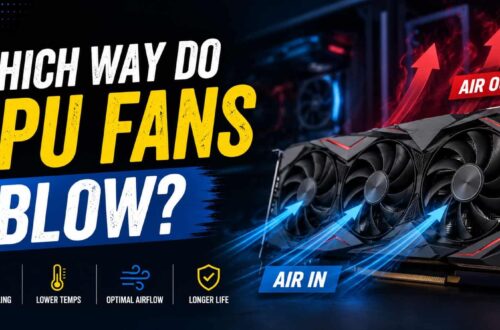
GPU fans usually pull cool air into the graphics card and push hot air out through the heatsink and case airflow system. In most PCs, proper airflow helps keep GPU temperatures low and improves gaming performance.